Bulk Apply A New Design To Live eBay Listings
If you need to refresh branding, improve mobile layouts, or roll out a new eBay template across multiple products, the fastest approach is to bulk apply a new design to live eBay listings. Instead of editing listings one by one or ending active listings, bulk revision tools allow you to update designs across selected listings quickly while keeping sales history and visibility intact. This guide walks you through the exact steps to apply a new Frooition design to multiple live listings safely and efficiently.
1. Navigate to https://freedom.frooition.com/bulkrevision/
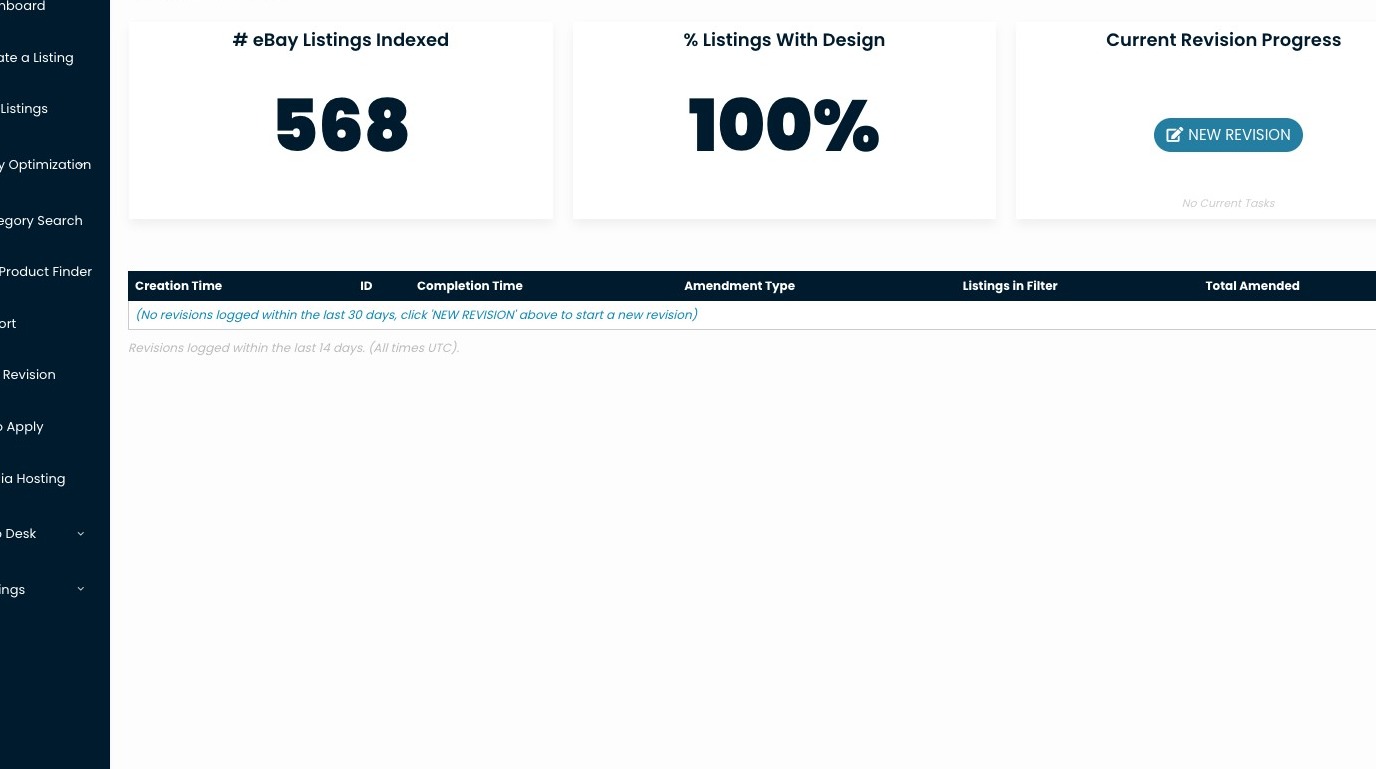
2. Click "NEW REVISION"
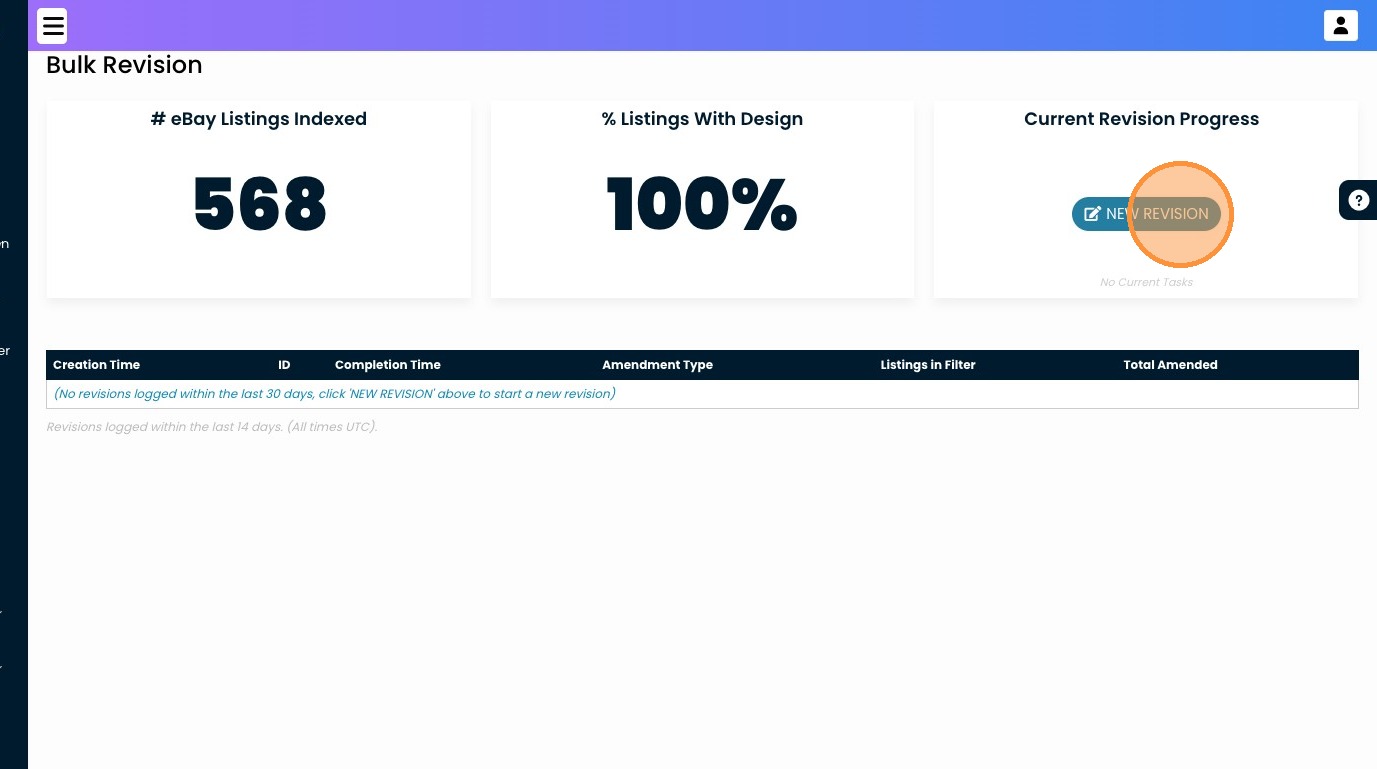
3. Add in your filters, this brings your listing selection down to the exact items you want to amend. Leave everything blank if you want to amend all.
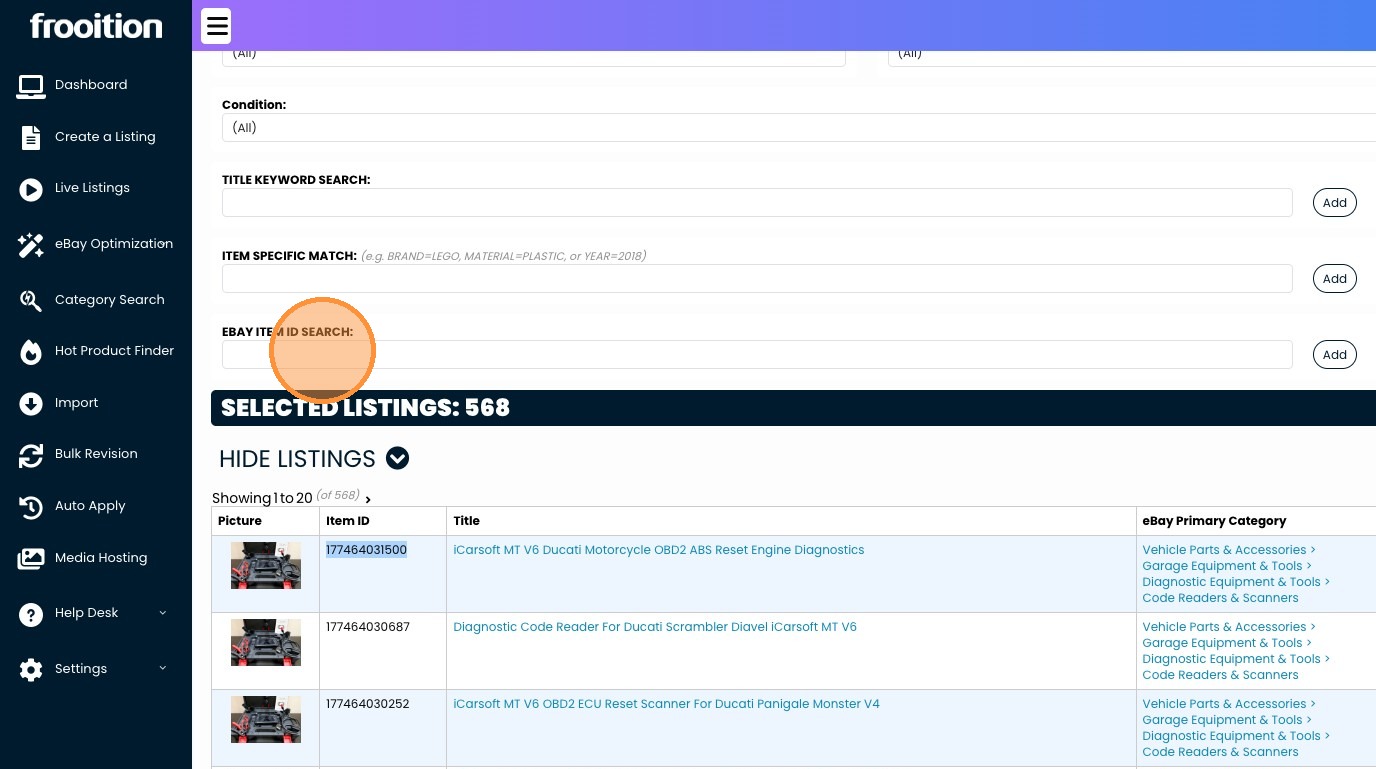
4. Or search by eBay Item Numbers.
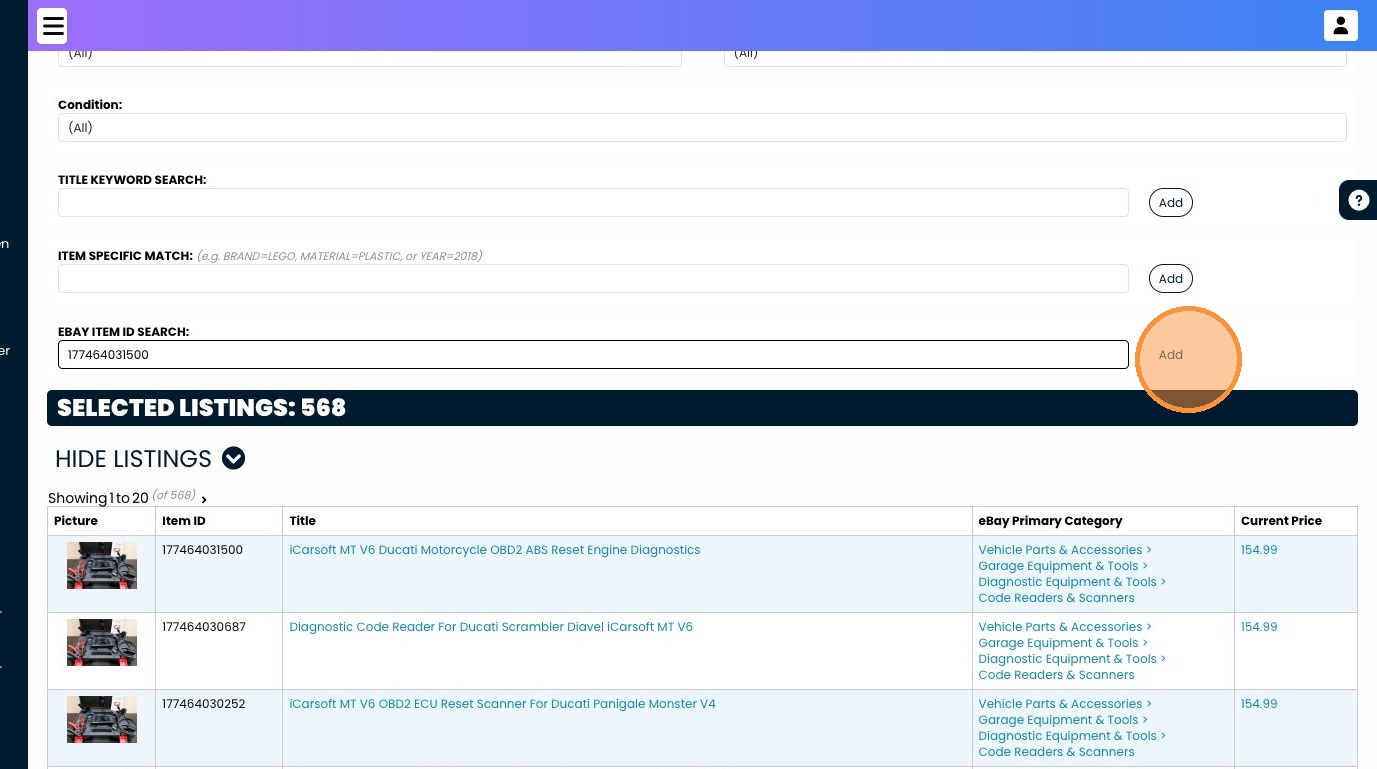
5. Click "NEXT STEP"
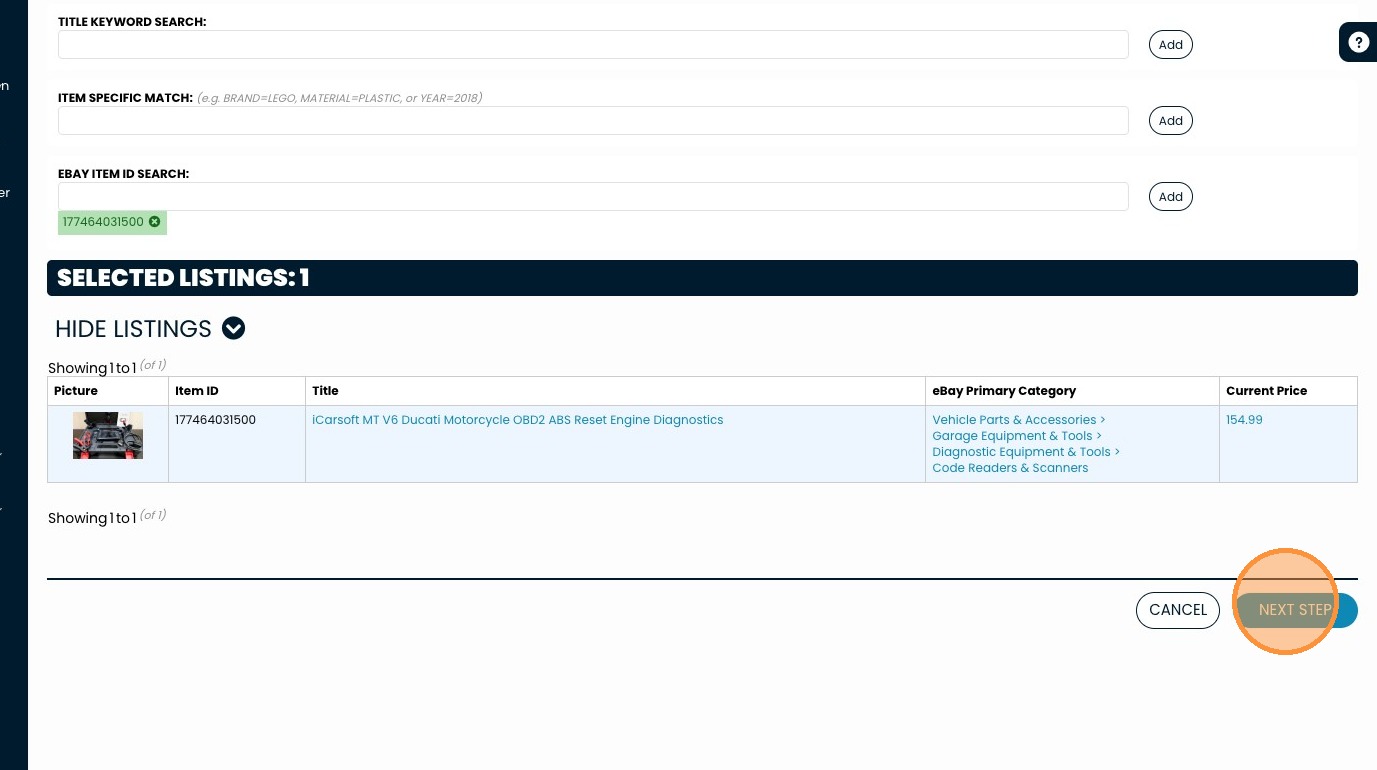
6. Click "Design Add or remove your listing designs, or change your design to another in your design library"
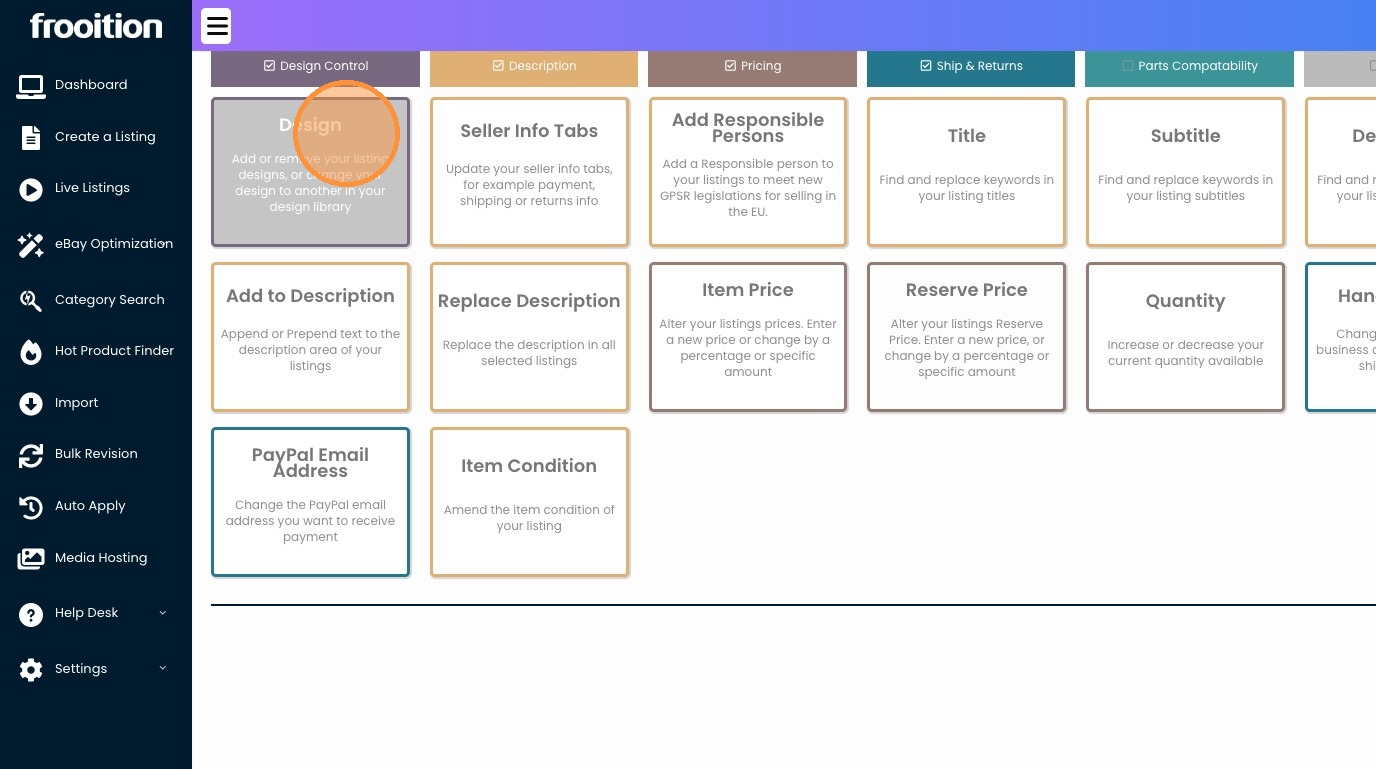
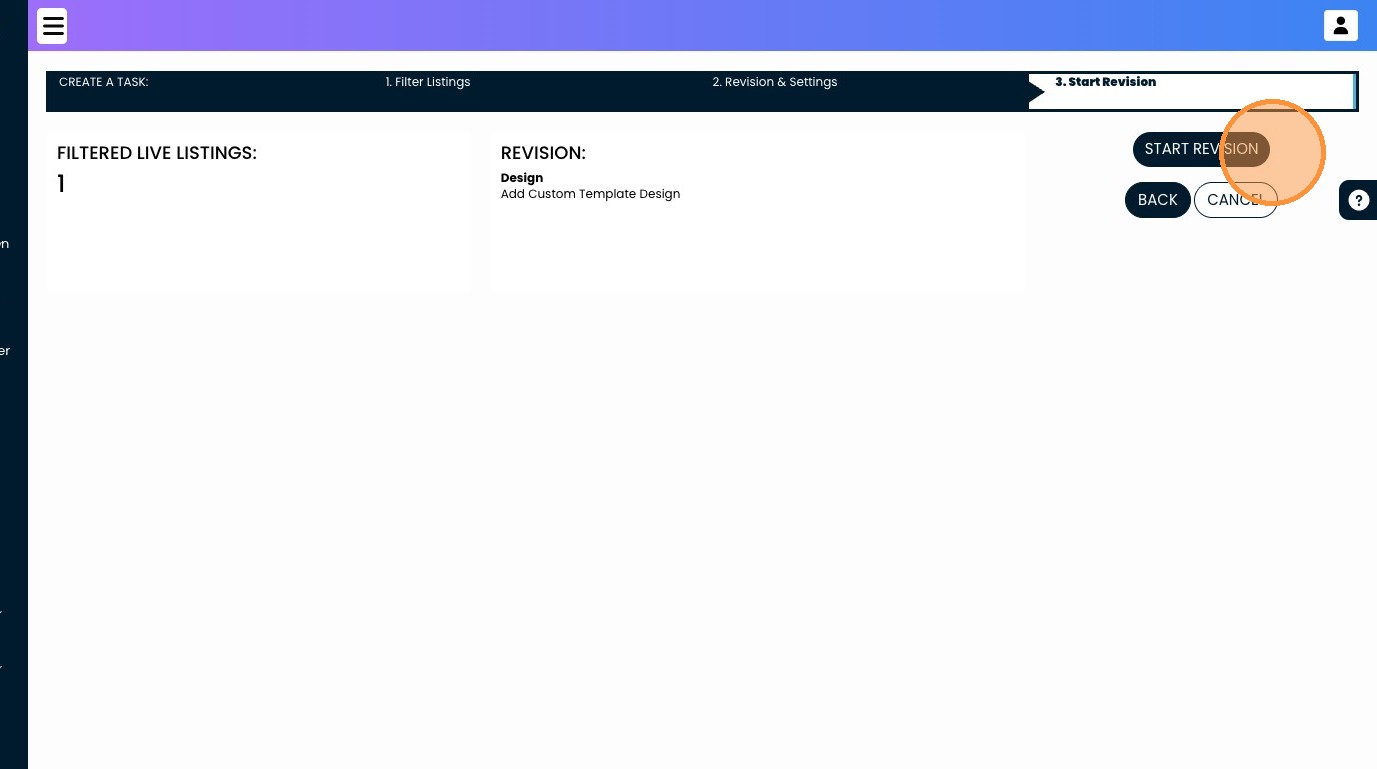
7. Click "Review Revision"
8. Click "START REVISION"