
Add Your eBay Seller Info Tabs For Your eBay Listing Template
This step-by-step how to guide will show you how to add in your eBay seller info tabs and content for your eBay listings, to show potential customers important information about your company, shipping policies, returns policies, and how to contact you.
Enhance your eBay listings with customized seller information tabs in your Frooition listing template, giving potential buyers quick access to key details like About Us, payment terms, shipping details, returns policy and more. Seller info tabs help build trust, answer common buyer questions and improve the overall shopping experience, which can lead to higher conversions and fewer pre-sale queries. In this step-by-step Frooition guide you’ll learn how to add, edit and personalise your seller info tab content so your eBay listings are informative, professional and tailored to your business needs.
1. Navigate to https://freedom.frooition.com/ebay/
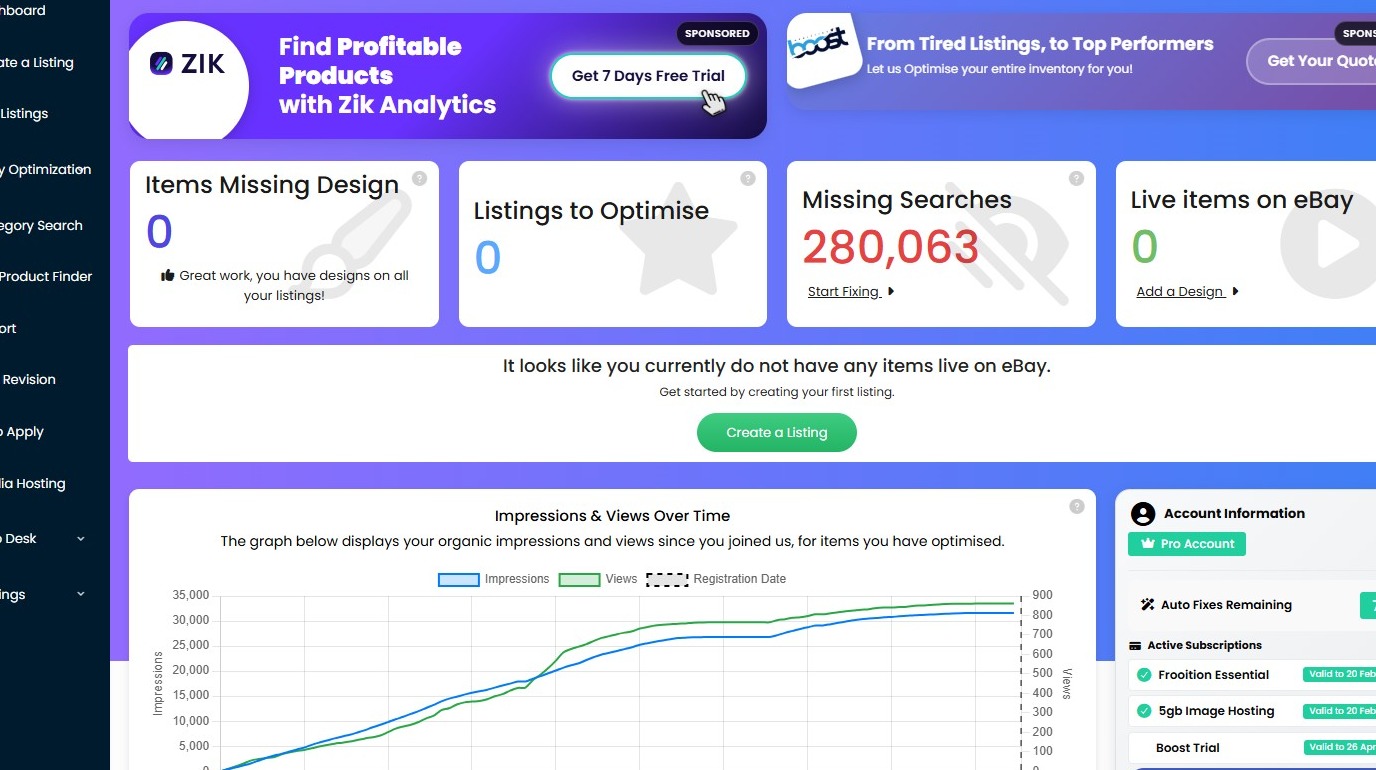
2. Click "Settings" from the left-hand navigation.
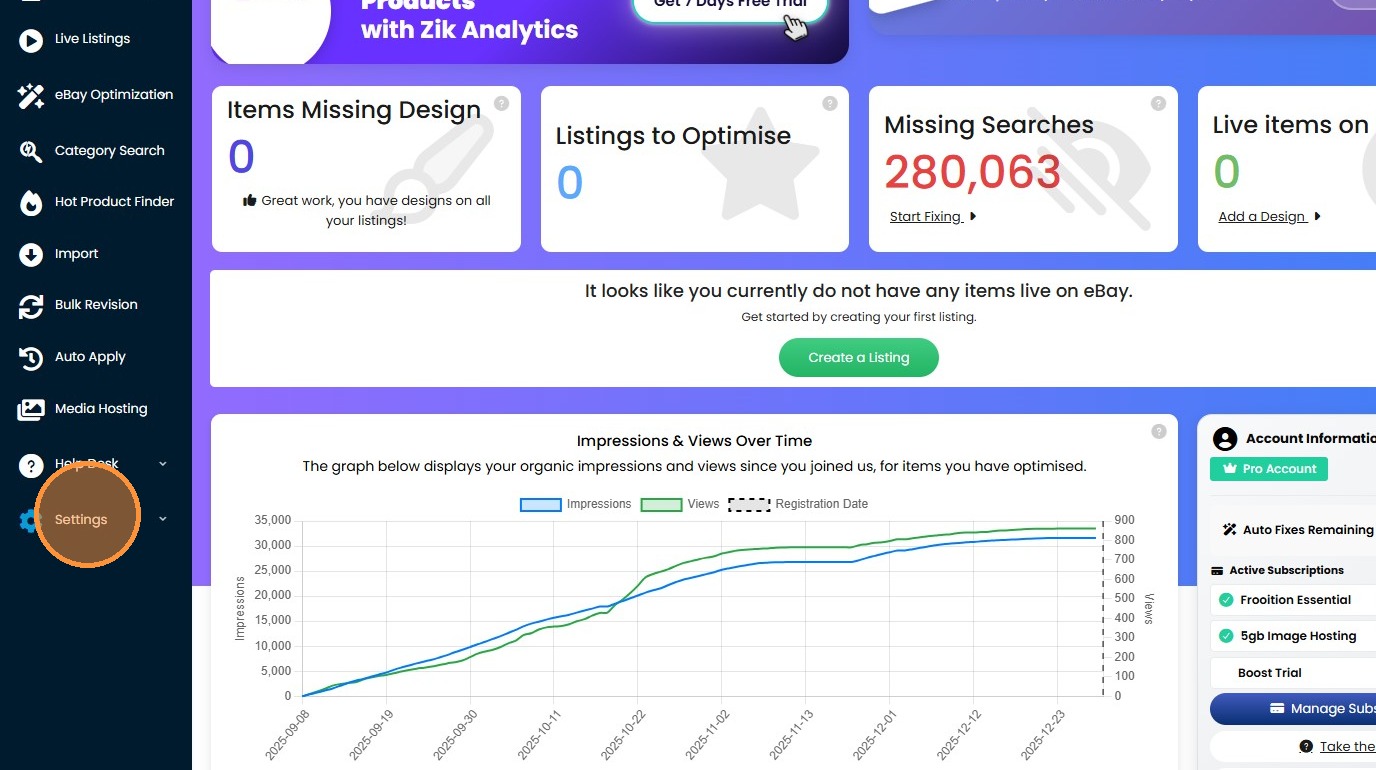
3. Click "Seller Info Tabs"
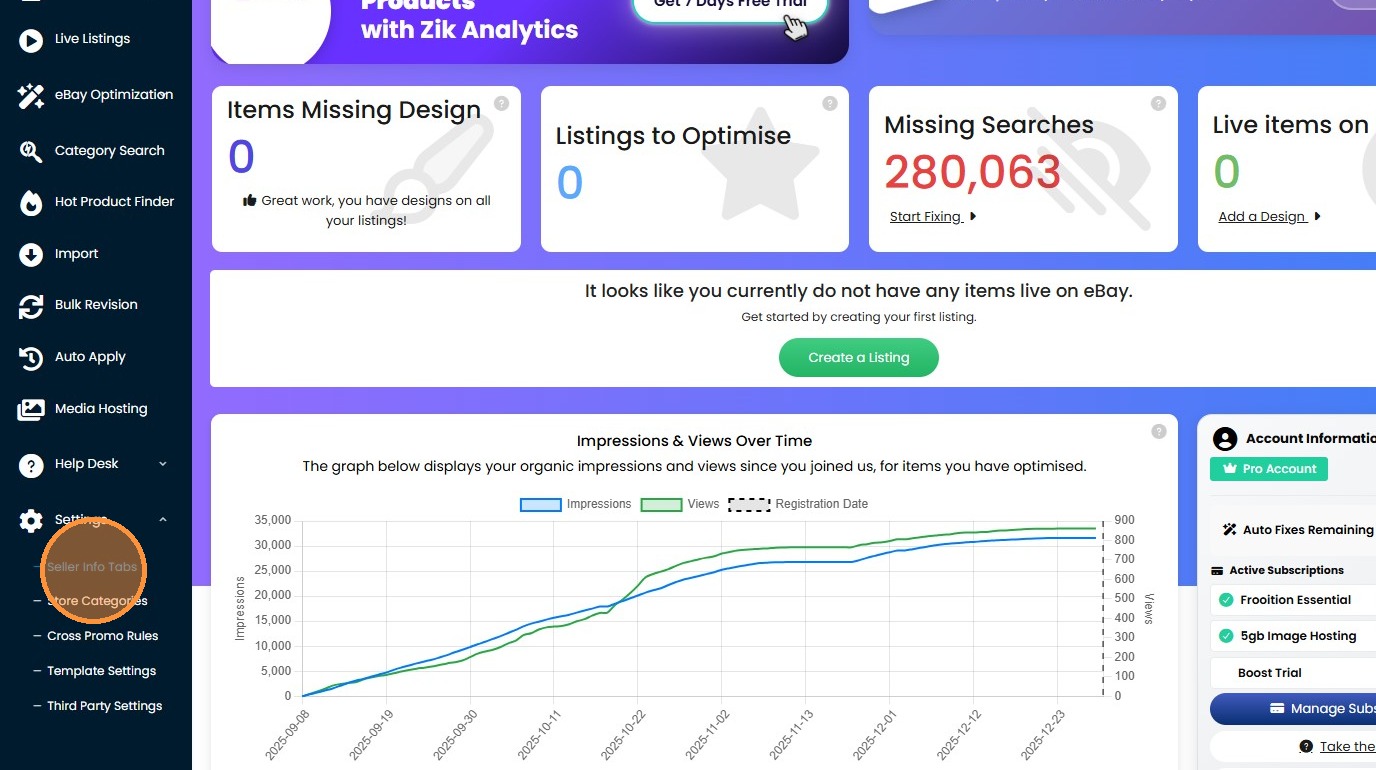
4. From the Edit Tab Set select the "default" option.
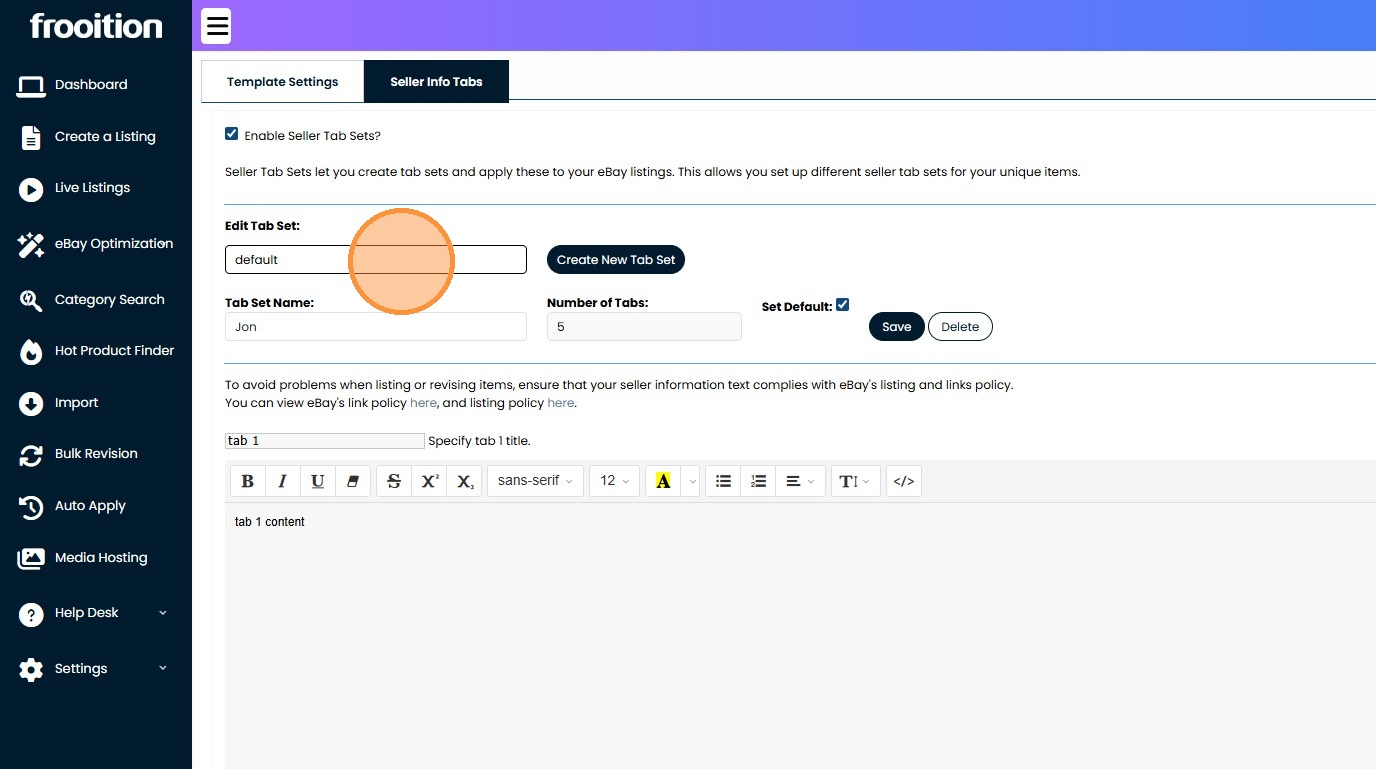
5. Give your tab set a unique name or use default if it will be the same tabbed content on all eBay listings.
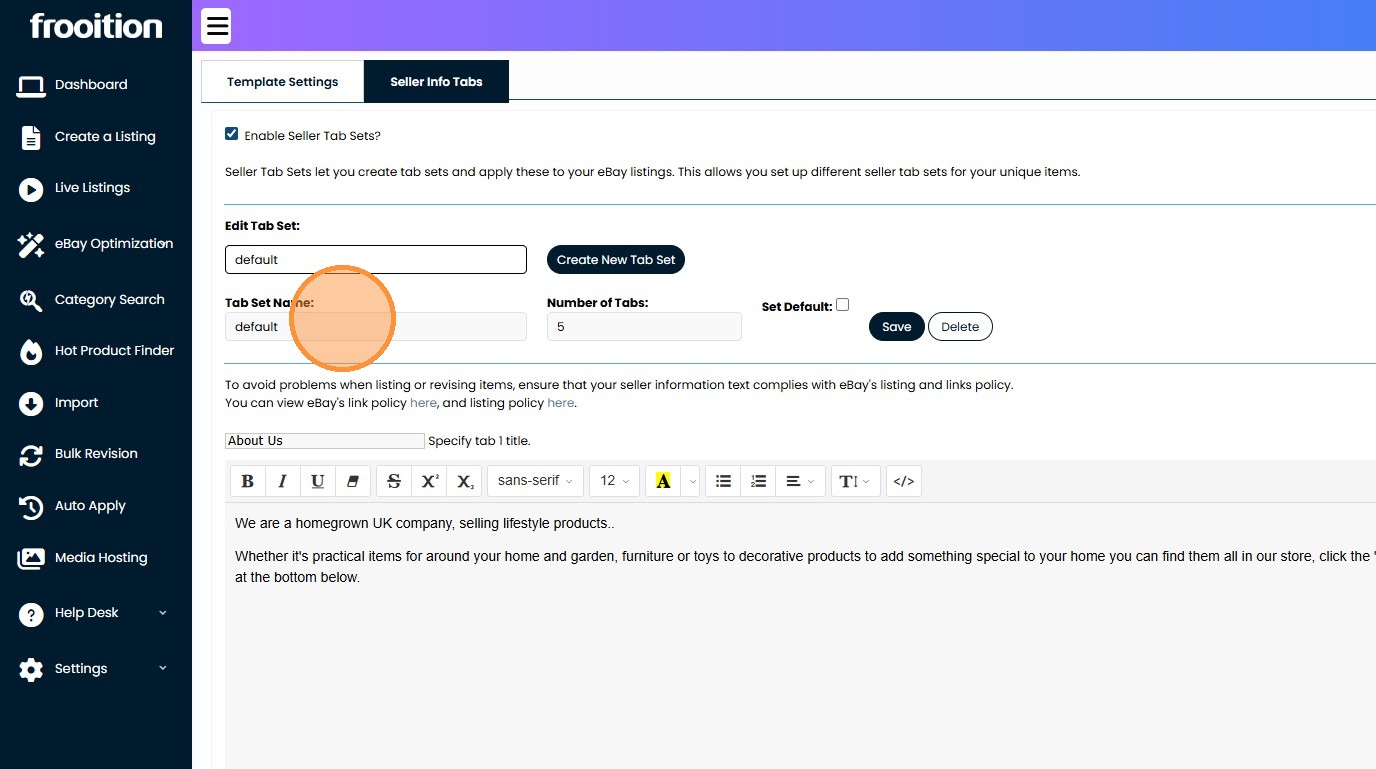
6. Insert your content for 'About Us'
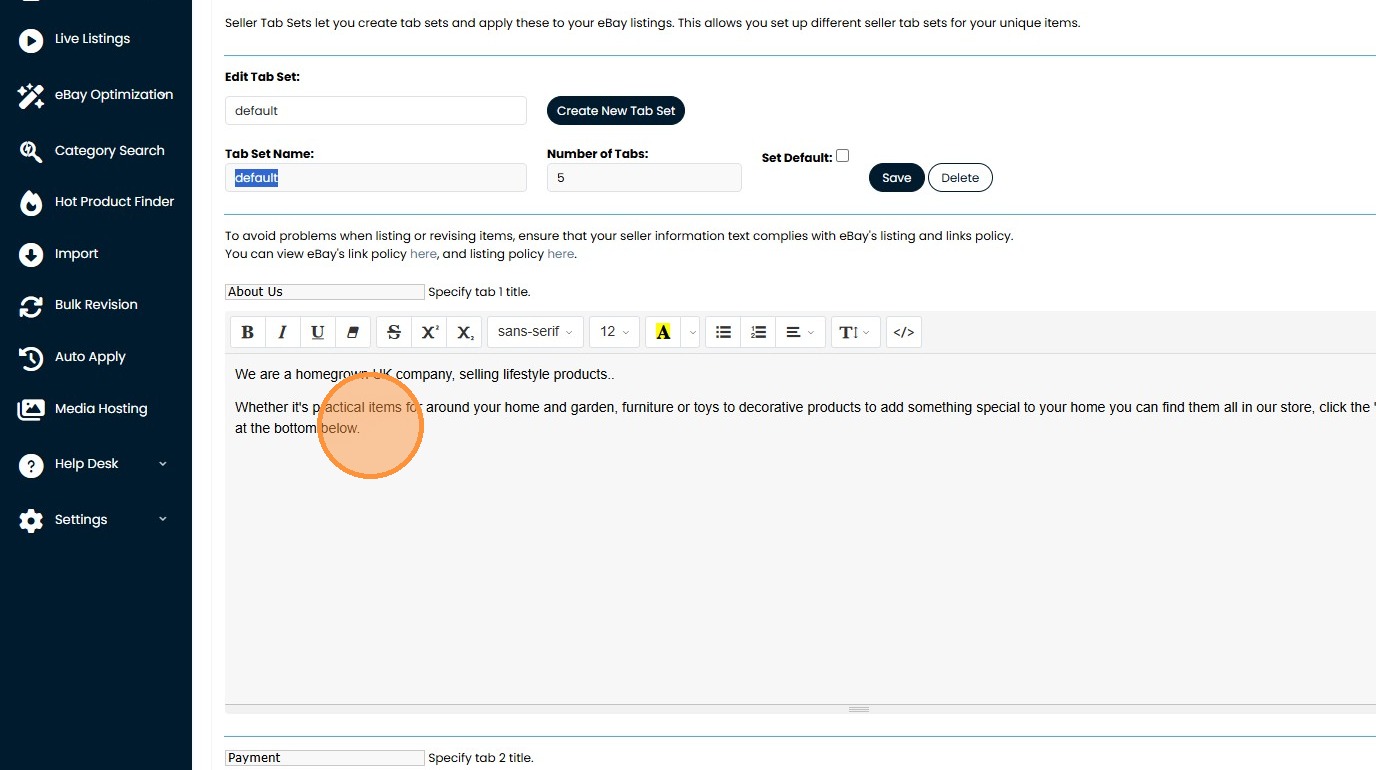
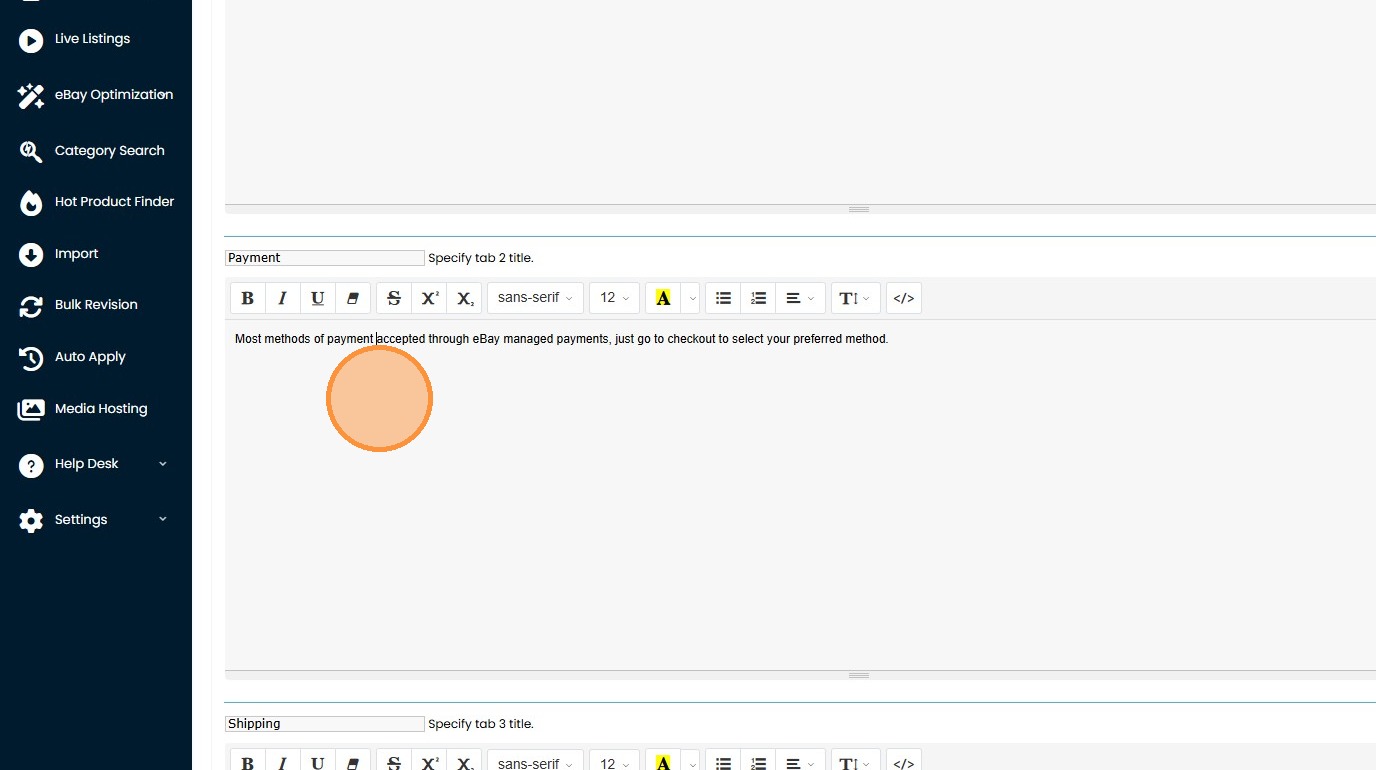
7. Insert your content for 'Payment'
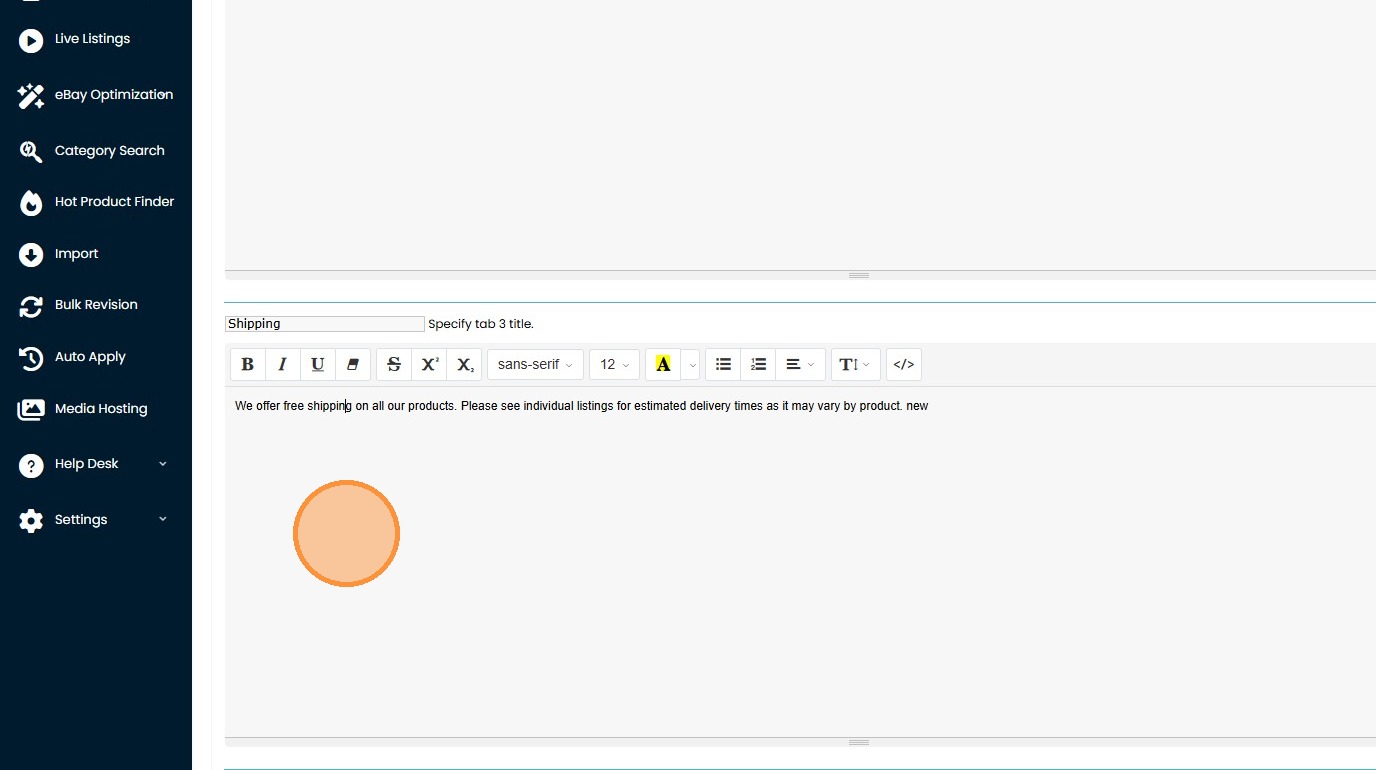
8. Insert your content for 'Shipping'
9. Insert your content for 'Returns'
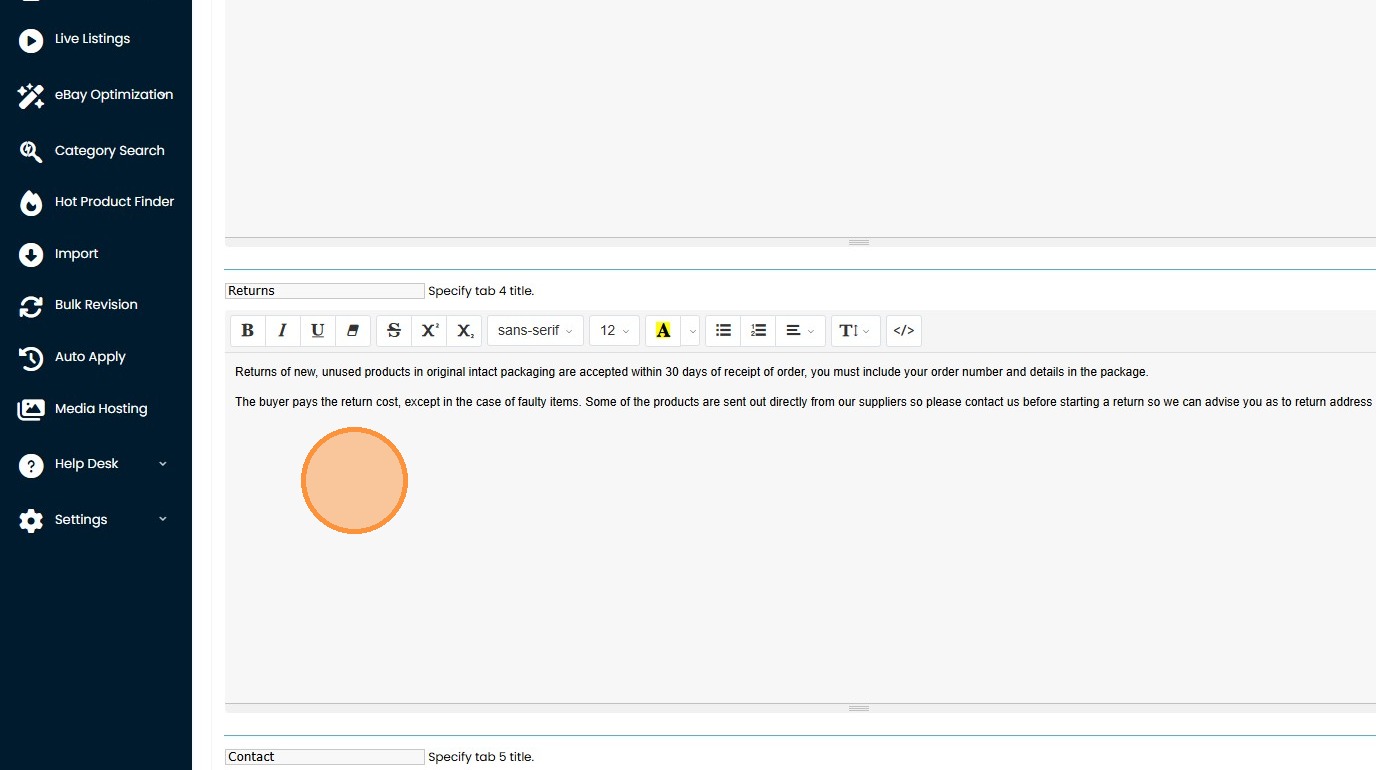
10. Insert your content for 'Contact' - please remember not to include any external links, email addresses, or phone numbers. If you want sellers to contact you directly it should be through the eBay message seller system.
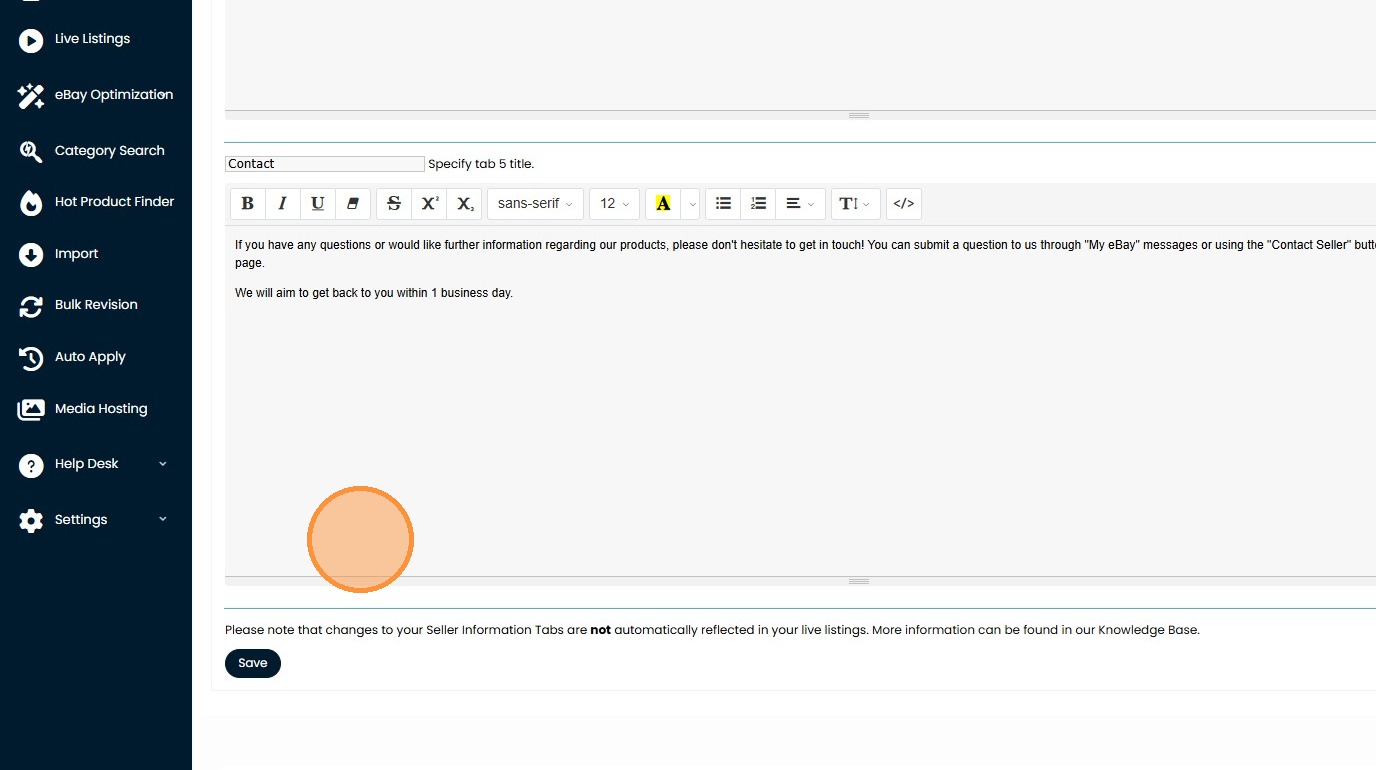
11. Click "Save"
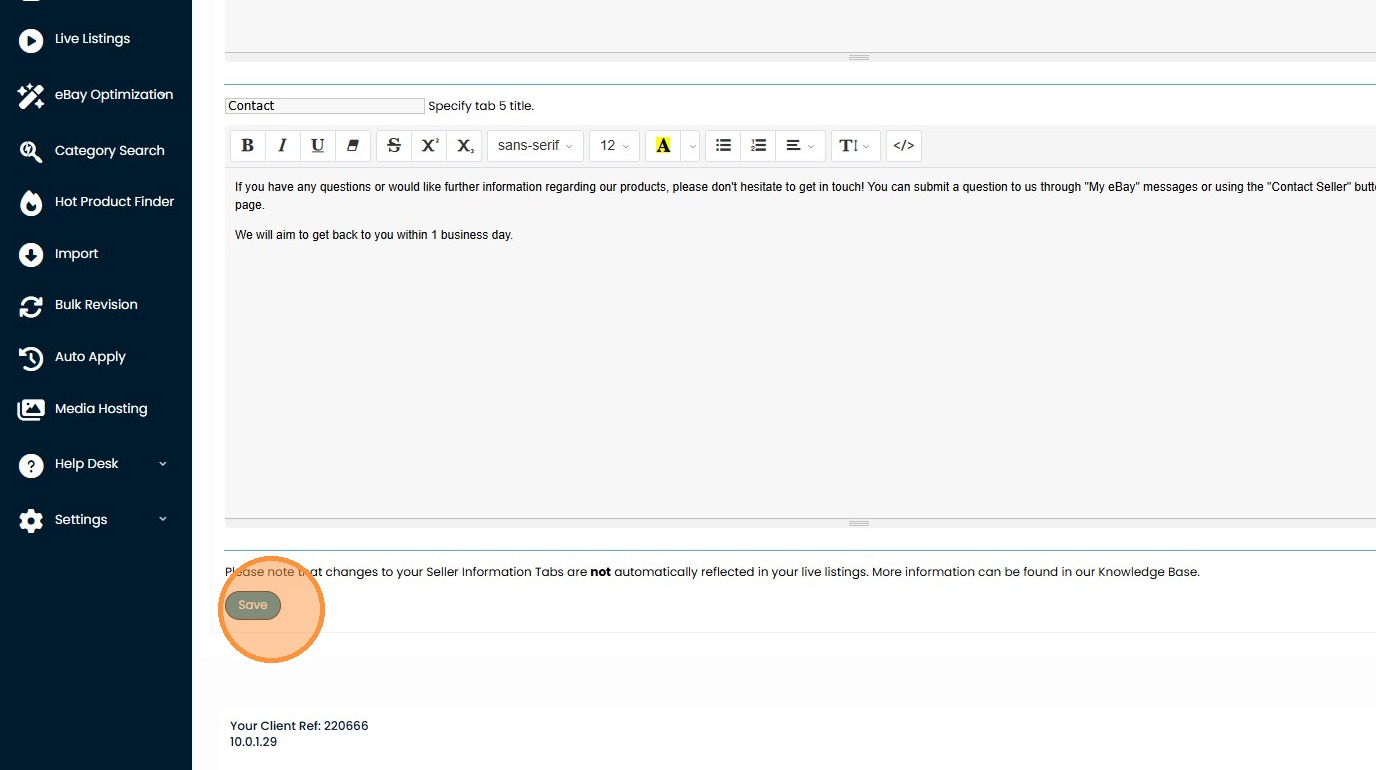
12. Once saved - open a support ticket via > Help Desk > Create Ticket (https://freedom.frooition.com/help/support/contact_us/index.php) and our support team will be able to update all your live listings with your Frooition eBay template and updated seller info tabbed content ASAP.

