Share This Blog Post
Marketing banners are one of the most underused features in eBay stores. Most sellers either skip them entirely or upload something once and forget about it. That’s a missed opportunity — a well-designed banner can direct shoppers to your best products, highlight promotions, and make your store look more professional than 90% of your competition.
This guide covers everything you need to know: the difference between billboards and marketing banners, the exact steps to upload them in Seller Hub, and practical tips for designing banners that actually get clicks.
Billboards vs Marketing Banners: What’s the Difference?
eBay gives you two types of banner space, and they serve different purposes:
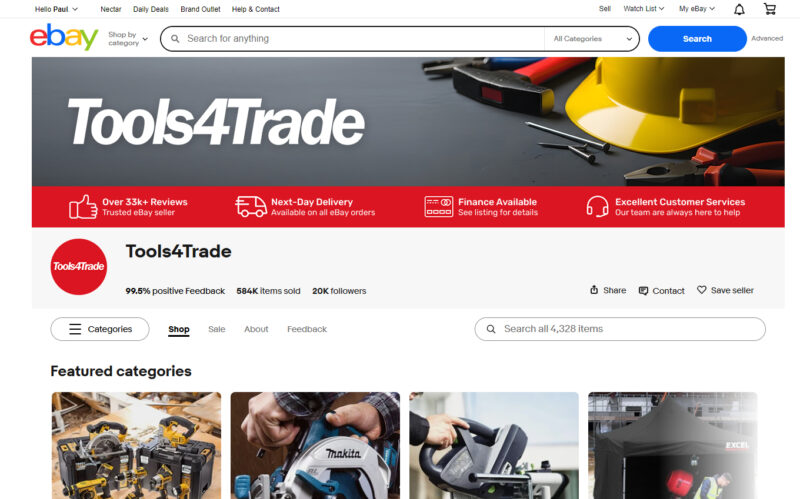
Store Billboard
This is the large header image at the top of your store. Think of it as your shop window — it sets the tone and shows buyers they’re in the right place. The billboard is about brand identity, not direct sales. Use it to display your logo, tagline, and establish a professional look.
Marketing Banners
These are the clickable promotional images that appear below your billboard. Unlike the static billboard, marketing banners link directly to specific categories, promotions, or product collections. They’re your tactical tools for driving traffic to whatever you’re pushing this week — seasonal sales, new arrivals, clearance items.
The key difference: your billboard builds trust, your marketing banners drive clicks.
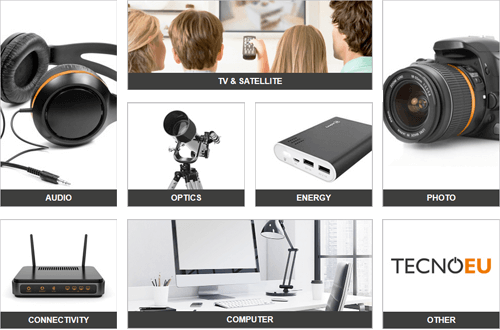
topseller categoryboxes
eBay Store Banner Specifications (2026)
Before you design anything, get the specs right. Nothing looks worse than a blurry or cropped banner.
Billboard Dimensions
- Recommended size: 1200 x 270 pixels
- File format: PNG (for graphics/text) or JPEG (for photos)
- Keep text and logos in the centre 80% of the image — the edges get cropped on mobile
Marketing Banner Dimensions
- Standard size: 1200 x 270 pixels (same as billboard)
- You can add up to 4 marketing banners
- Each banner needs a destination URL
Mobile Considerations
Over half of eBay traffic comes from mobile devices. Your banner might look perfect on desktop but unreadable on a phone. Before publishing:
- Use large, bold text — if it’s hard to read at arm’s length on your phone, it’s too small
- Keep your message to 5-7 words maximum
- Test by viewing your store on your own phone before going live
- Use the Mobile Preview in Seller Hub
How to Add a Marketing Banner in Seller Hub
Here’s the step-by-step process:
Step 1: Access Your Store Settings
Log in to Seller Hub and click on the Store tab in the left menu. Select Edit Store to open the customisation options.
Step 2: Find the Marketing Banners Section
Scroll down past the Billboard settings. You’ll see a section for Marketing Banners with slots for up to 4 banners.
Step 3: Upload Your Image
Click Add Banner and upload your image file. Make sure it’s the correct dimensions (1200 x 270 pixels) and under eBay’s file size limit.
Step 4: Add Your Destination Link
This is the crucial part. When someone clicks your banner, where should they go? Options include:
- A specific category in your store (e.g., “Sale Items”)
- A search results page filtered by criteria
- Your store’s home page (not recommended — too generic)
Always link to something specific. “Shop Now” buttons that go to your general store page waste the click.
Step 5: Preview and Publish
Use the preview function to check how your banner looks on both desktop and mobile. Pay attention to text legibility and image cropping.
What Makes a Good eBay Marketing Banner?
We’ve designed thousands of eBay store banners over 20 years. Here’s what works:
One Message Per Banner
Don’t try to promote three things at once. One banner = one offer. “20% Off All Garden Tools” is clear. “Sale + Free Shipping + New Arrivals” is noise.
Clear Call-to-Action
Tell people exactly what to do:
- “Shop the Sale” — for promotions
- “Browse New Arrivals” — for new stock
- “View Collection” — for curated categories
Avoid vague text like “Click Here” or “Learn More” — they don’t tell the shopper what they’ll get.
High Contrast Design
eBay’s interface is mostly white and grey. Your banner needs to stand out without looking garish. Use your brand colours, but make sure text is readable against the background.
Seasonal Rotation
Don’t set and forget. Update your banners for:
- Major shopping events (Black Friday, Christmas, Back to School)
- Your own promotions and sales
- New product launches
- Seasonal inventory (summer/winter ranges)
A banner promoting last year’s Christmas sale in March makes your store look abandoned.
Common Banner Mistakes We See
After auditing hundreds of eBay stores, these are the problems we see most often:
Mistake 1: Broken or Generic Links
The banner looks great, but it links to your store homepage or — worse — a dead link. Always test your links after publishing, and test them on mobile.
Mistake 2: Text That Disappears on Mobile
Small text at the edges of your banner gets cropped on phones. Keep important information centred and use fonts large enough to read on a 6-inch screen.
Mistake 3: Low-Resolution Images
Blurry banners kill credibility instantly. Design at the correct dimensions (1200 x 270) and save at high quality.
Mistake 4: Inconsistent Branding
Your banner should look like it belongs with your listing templates and product images. Random fonts and clashing colours make your store look amateur.
When to Invest in Professional Store Design
The Seller Hub tools are fine for basic banners, but there’s a ceiling to what you can achieve with DIY graphics. If you’re serious about scaling on eBay, your store design needs to work harder.
Professional store design makes sense when:
- You’re spending money on eBay Promoted Listings but sending traffic to a generic-looking store
- Your conversion rate is lower than competitors selling similar products
- You want your store to look as good as your products
- You don’t have time to create and update banners yourself
At Frooition, we create eBay store designs that match your listing templates — so when a buyer clicks through from search, everything looks cohesive. That consistency builds trust and makes you look like a serious retailer, not a casual seller.
Next Steps
If you want to improve your eBay store but don’t have time to design banners yourself, we can help. Our eBay store design service includes custom billboards, marketing banners, and listing templates that all work together.
You can also use our free eBay Listing Checker to see how your current listings stack up, or read our eBay SEO guide for more ways to improve your store’s visibility.
Related Links:
Share This Blog Post
Related Posts

Thanks! We'll be in touch within one business day.