
Add a product gallery to an Amazon store
To add a product gallery to an Amazon Store, use the Amazon Store Builder to insert a “Product Collection” tile into your page layout. This feature allows you to showcase curated groups of products—ranging from best sellers to new arrivals—using immersive lifestyle imagery and customizable text. In this guide, we provide a step-by-step walkthrough on how to select ASINs, optimize gallery layouts for mobile and desktop, and utilize AI-driven tools to create high-converting product displays that enhance your brand story on Amazon.
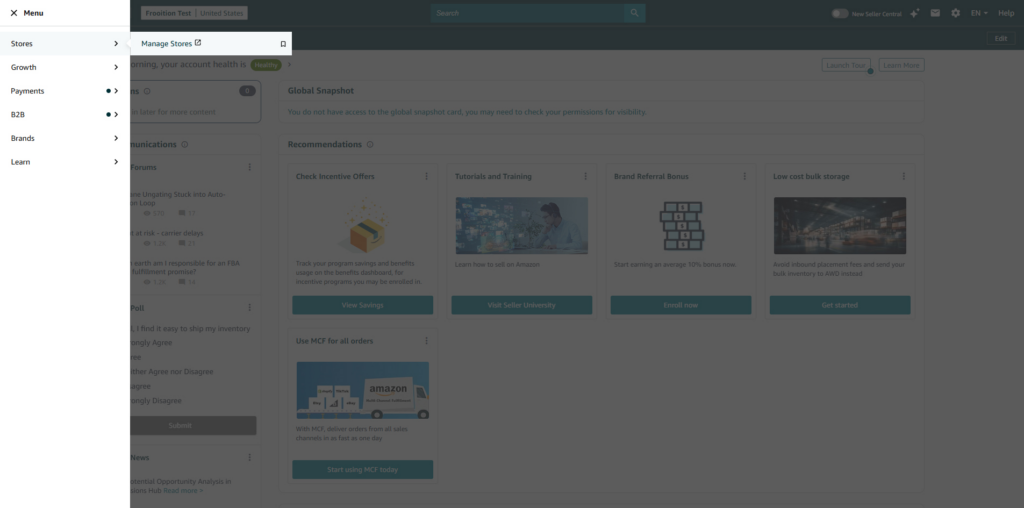
From the Amazon Seller Central home page, click the burger menu in the top left corner, and choose: Stores > Manage Stores
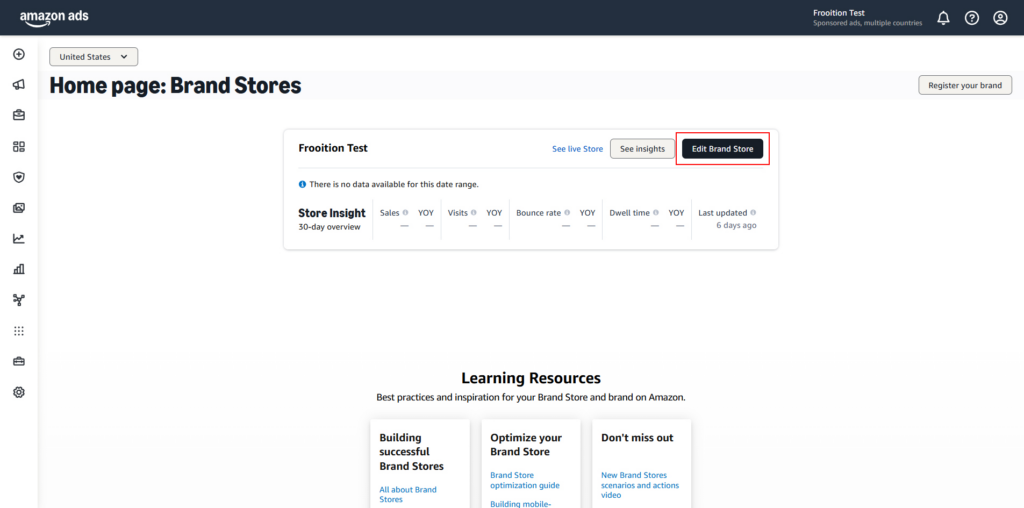
On the next page, click select the account you wish to edit (if you have multiple stores), and then click the ‘Edit Brand Store’ button.
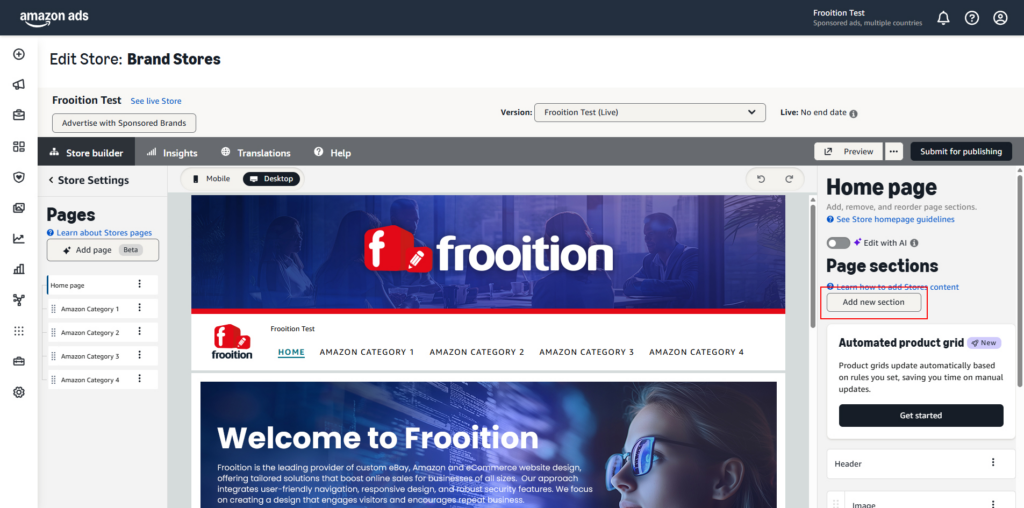
This will load the main edit page for the Amazon store. First select the relevant page which you wish to add the gallery to in the ‘Pages’ section on the left. Once you have selected the correct page, click the ‘Add new section’ button on the right of the page.
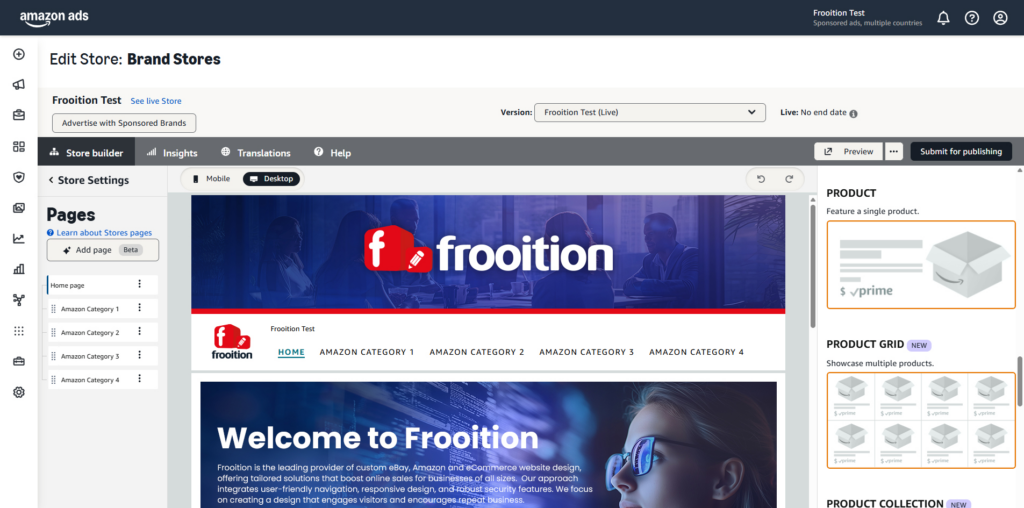
In the right column, scroll down to the relevant section which you are looking to add to the page. If you want to add a new product or product gallery area, scroll down to Product/Product Grid.
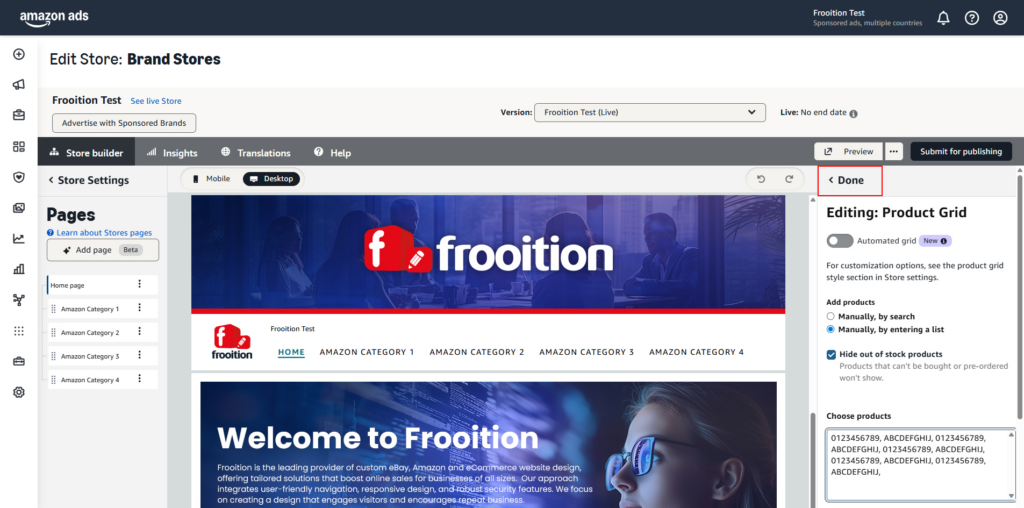
Amazon will then give you a few different options on whether you want the products to automatically be selected, or whether you want to manually choose them based upon a keyword or their Amazon product ASIN number.
If you have selected the Product Grid option, you can enter multiple ASIN numbers separated by a comma to display them in a grid format.
Once you have finished selecting your products, click ‘Done’ at the top of the column
Your new gallery will automatically be added to the bottom of the page, but you can re-position it by clicking the dotted section on the left of the title and dragging the block to the required area.
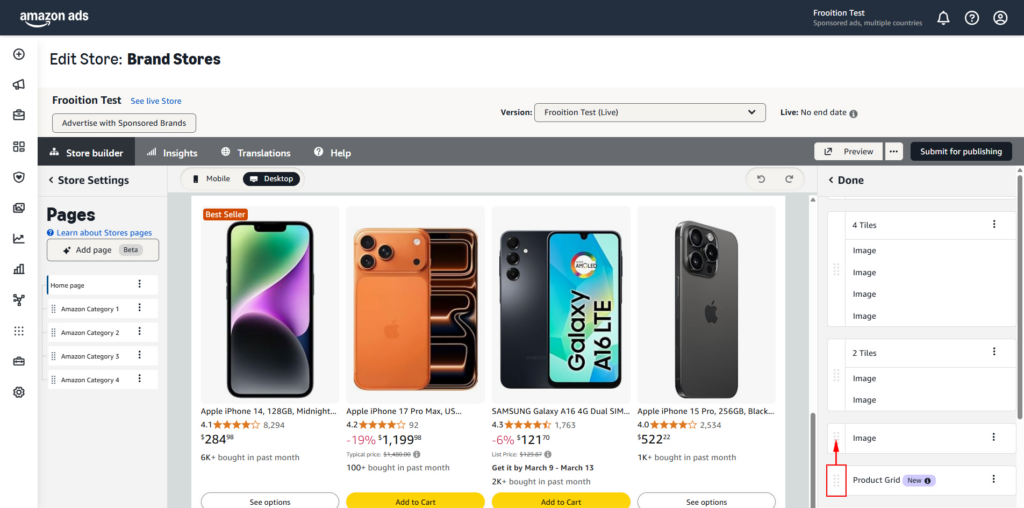
Once you are happy with everything, simply click the ‘Submit for publishing’ button at the top of the page to launch the updates live onto your Amazon store.
The process for editing/updating an existing section is much the same. Simply select the section you wish to edit in the ‘Page Sections’ area on the right, and update accordingly.
Share This How To Article
Thanks! We'll be in touch within one business day.

