
Create a new eBay Listing with Frooition – Manual Method
Start manually creating a high-performance eBay listing with Frooition’s manual method — a step-by-step guide designed to help eBay sellers quickly build optimized product listings using Frooition’s intuitive new listing tool. This tutorial walks you through creating your listing title, uploading and editing images, generating descriptions with AI support, selecting the best eBay categories, adding item specifics, pricing, and preparing your item for launch — all within Frooition’s powerful software built for faster, SEO-friendly eBay selling. Whether you’re new to Frooition or looking to refine your listing process, this manual eBay listing guide gives you the clarity and tools to list items that rank higher and attract more buyers.
Create a new listing with Frooitions new listing tool, jam packed full of AI features to help speed up your listing process.
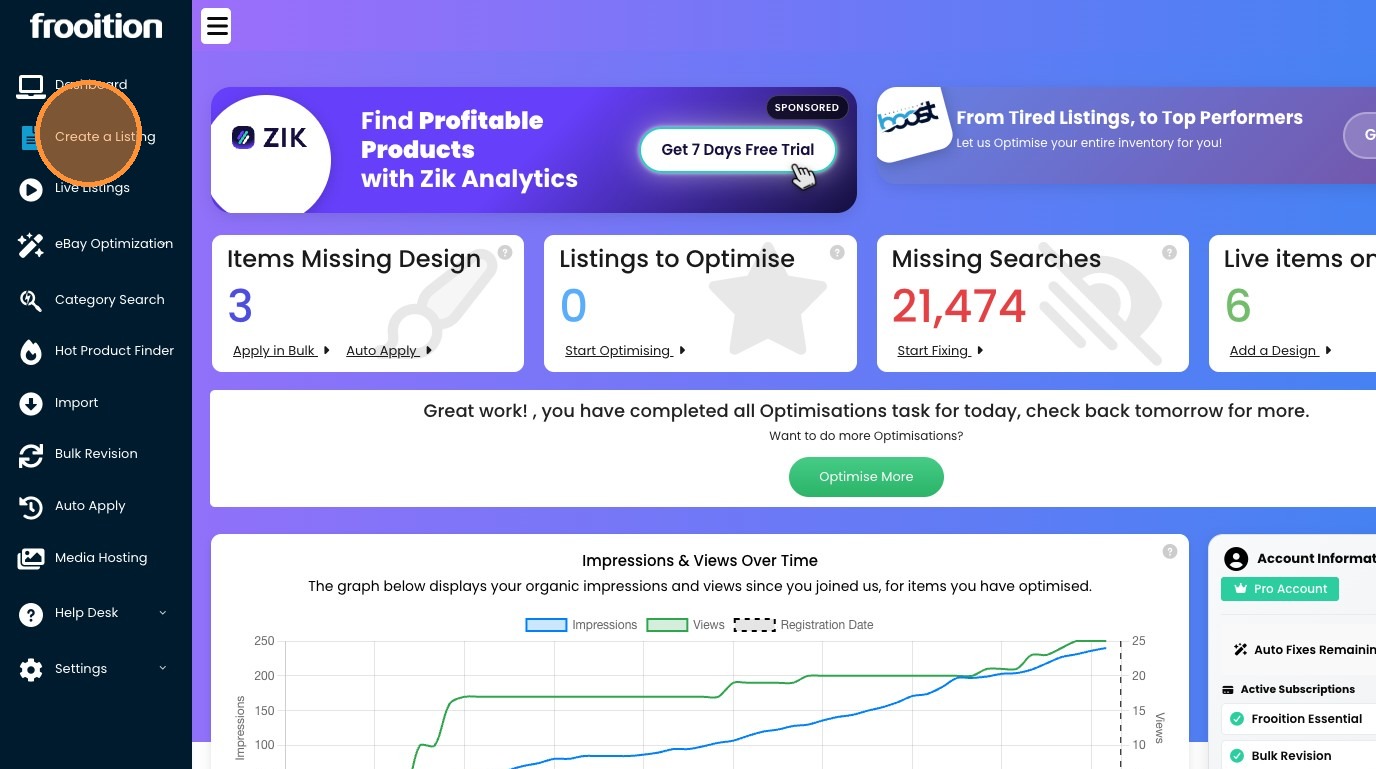
1. From the main dashboard, on the sidebar of your account, Click "Create a Listing"
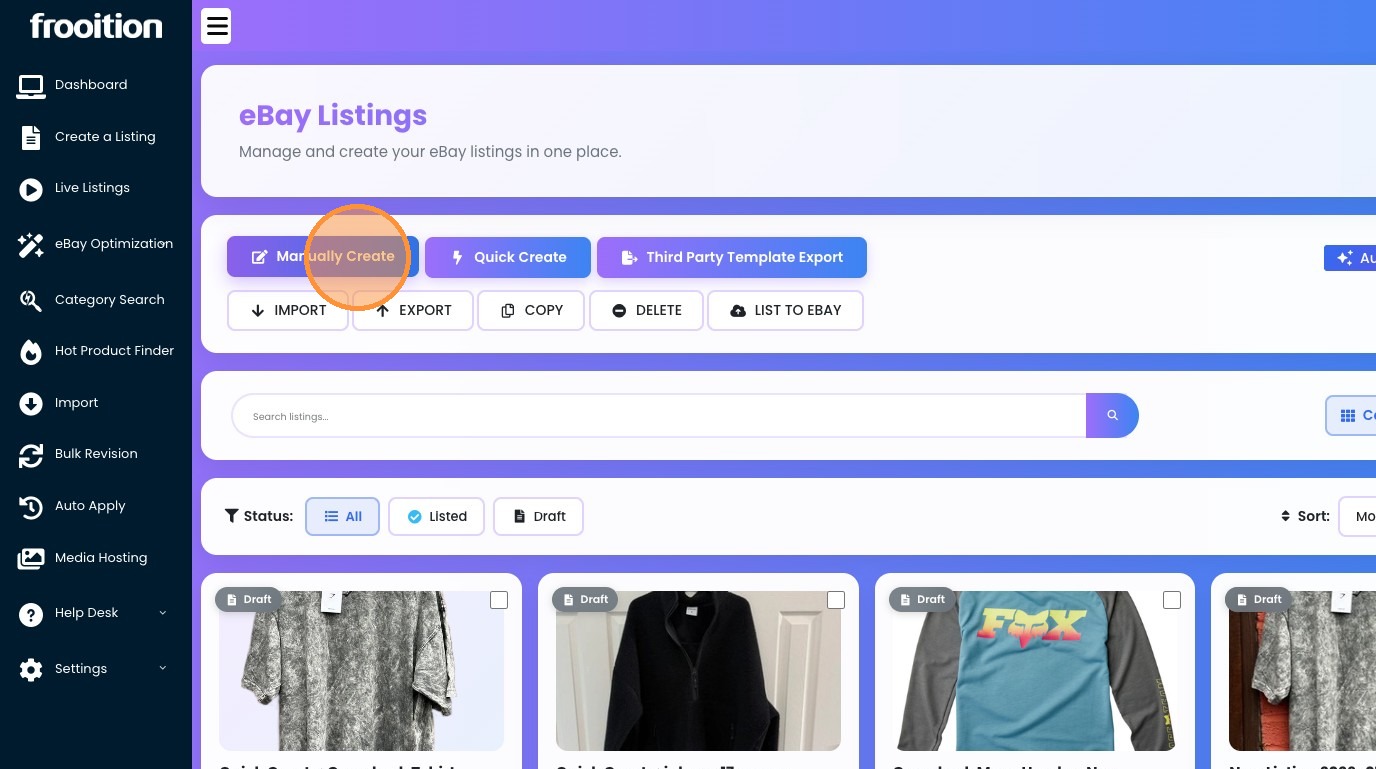
2. Click "Manually Create" to start creating your listing.
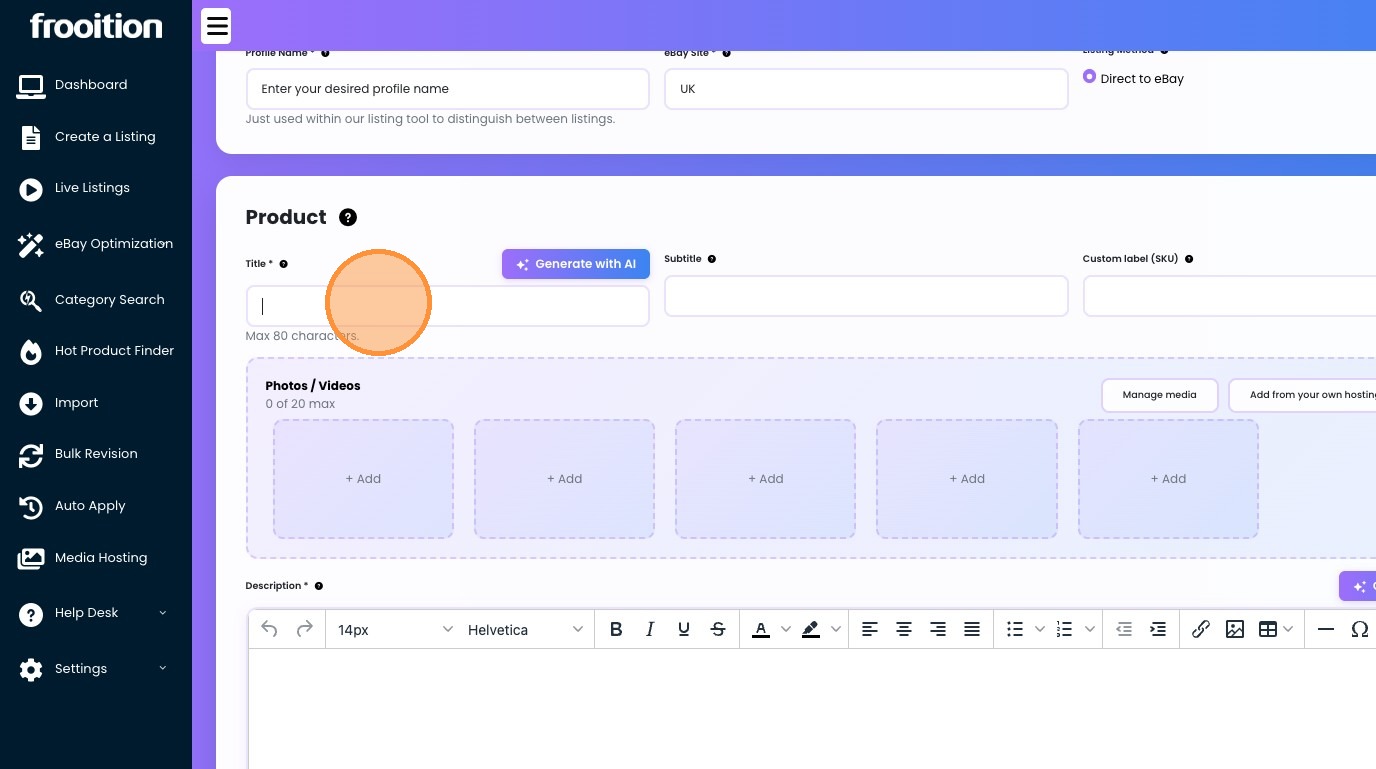
3. Click the "Title *" field, and enter your desired product, title. If you need help type as much information as possible and click Generate with AI, this will give you the best Optimised title for eBay SEO.
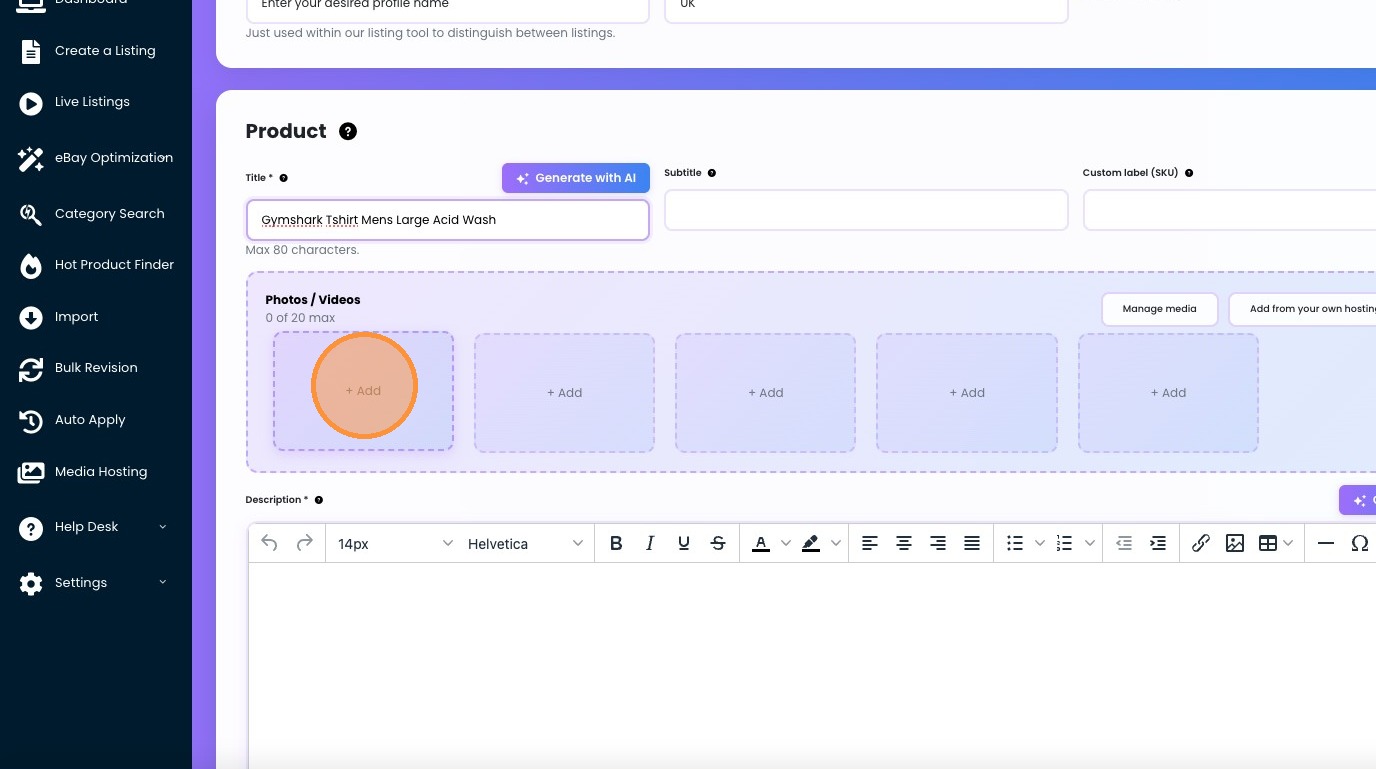
4. Next, we will add images, to do so, click the Add button in the image section.
5. You will see a pop up display with all your current hosted images via Media Hosting if you have this as a subscription. You will also see our new Background removal feature IF you are subscribed, feel free to give this a tick to remove backgrounds.
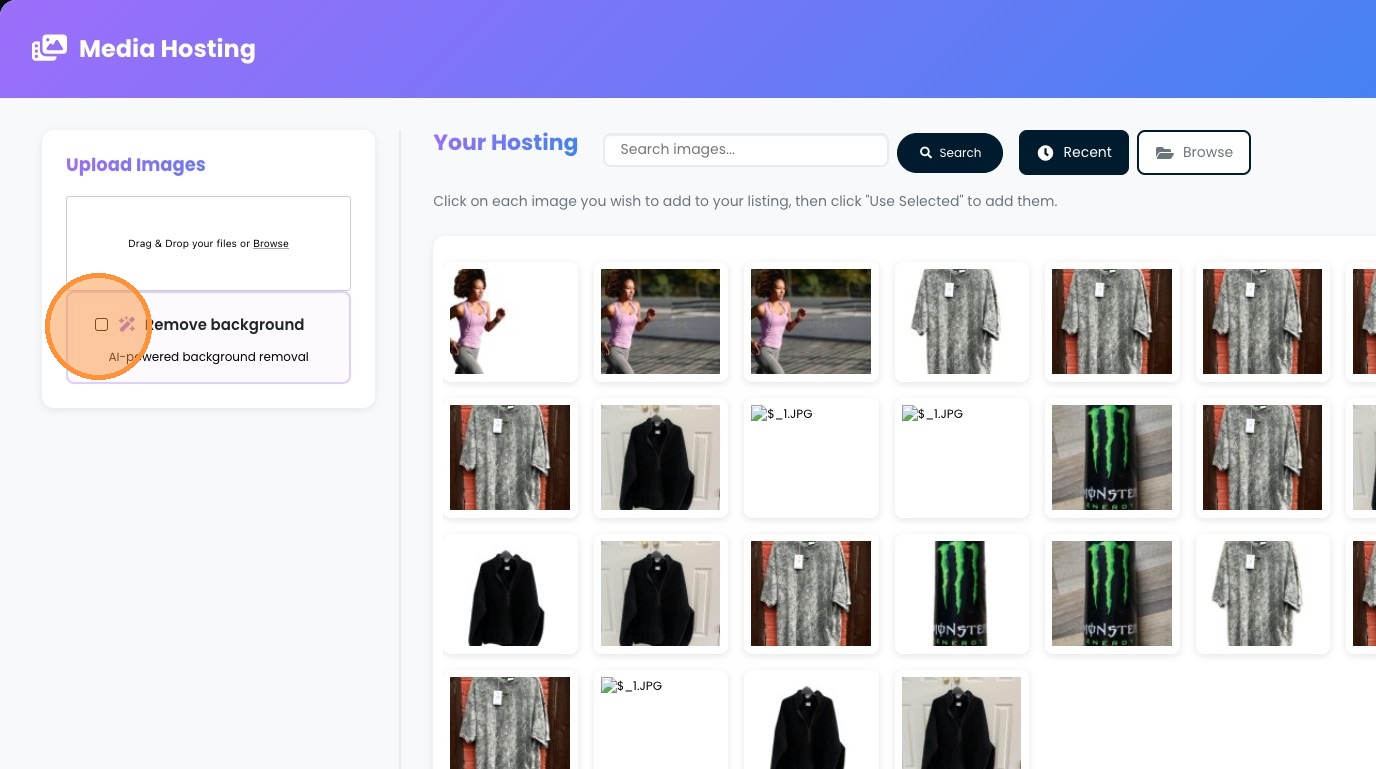
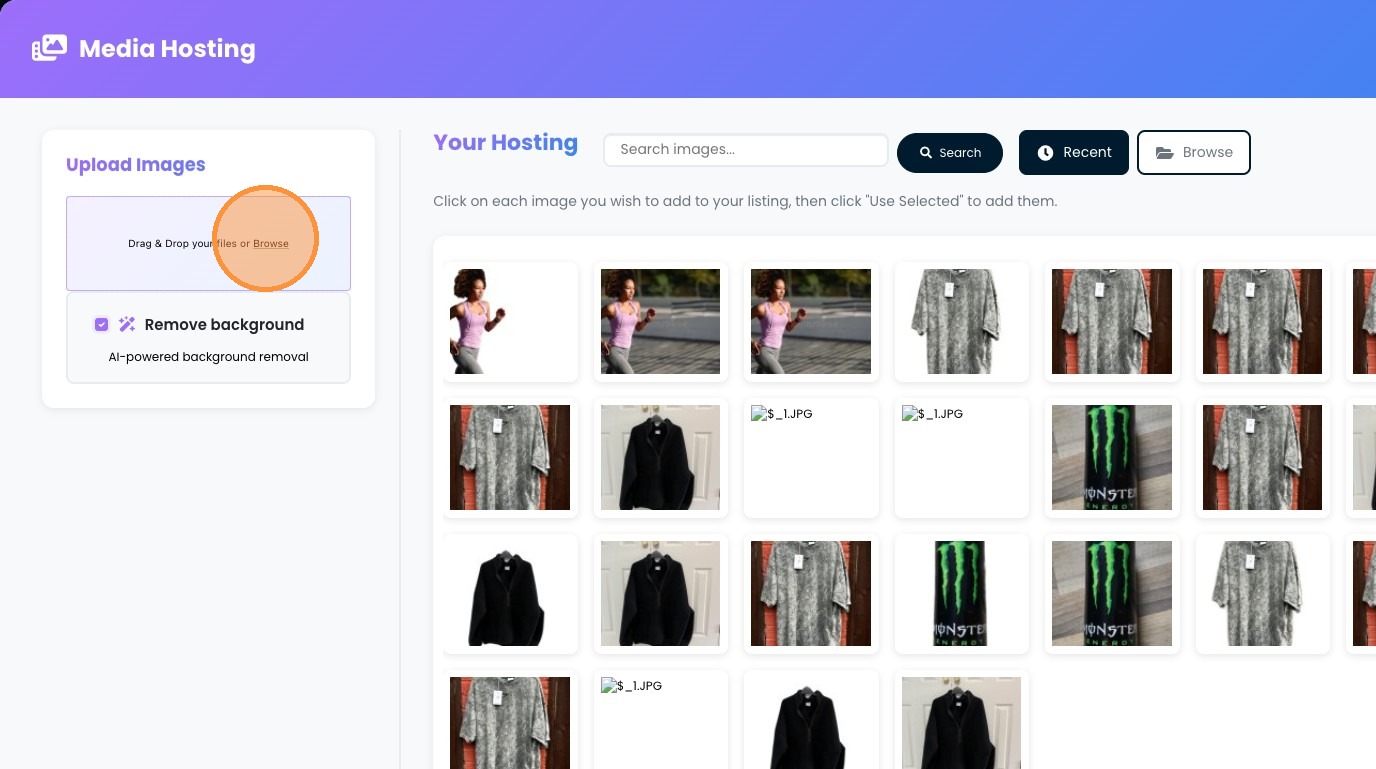
6. To start uploading an image, drag and drop your image into the box OR click the browse button.
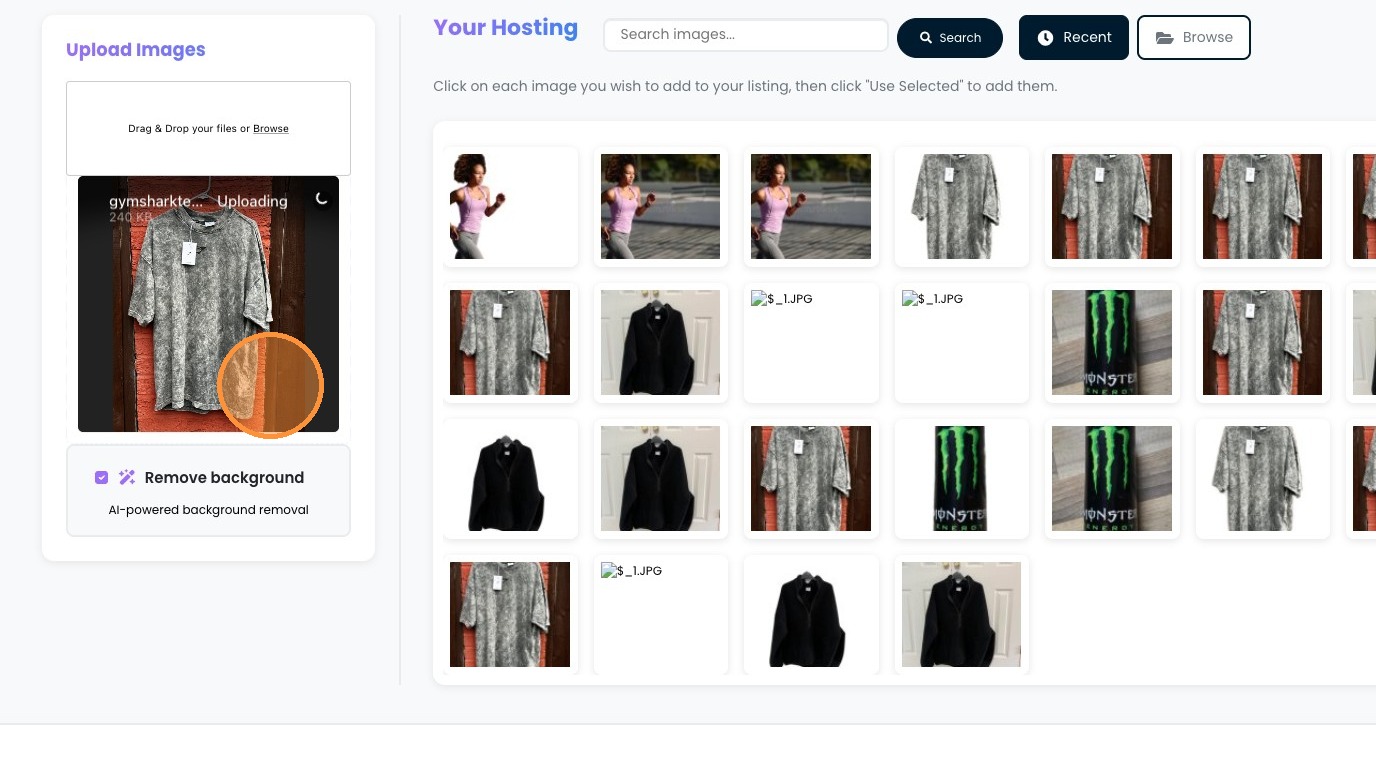
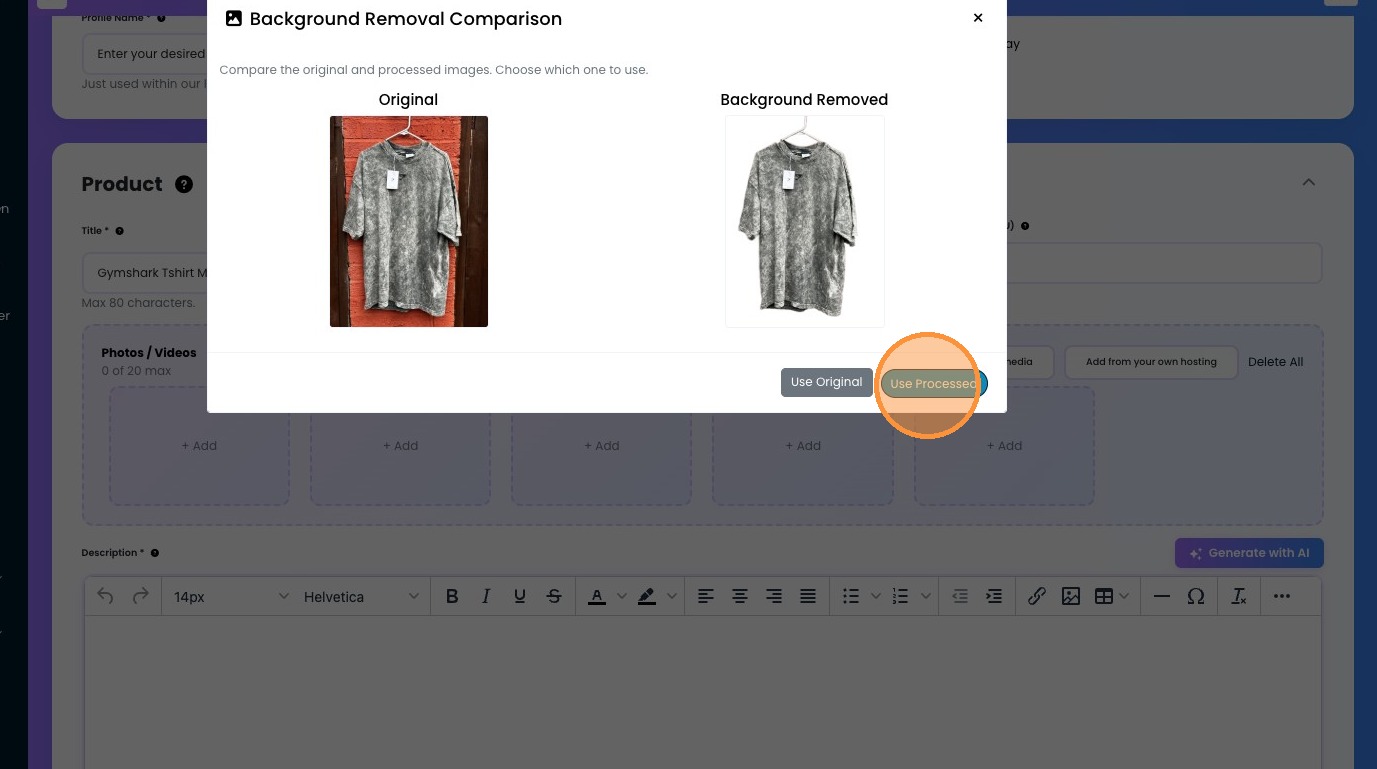
7. We are now uploading an image with a very complex background to show you the capabilities of our background removal tools.
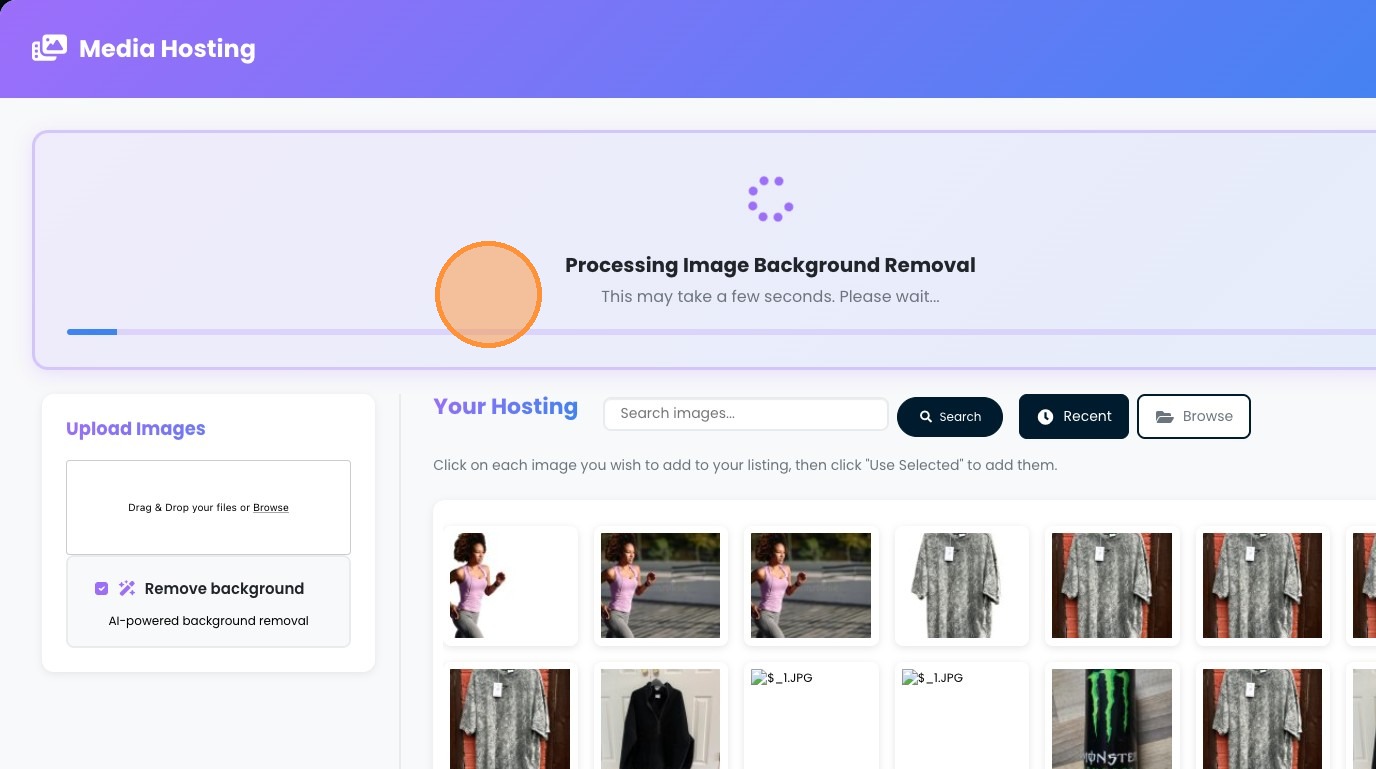
8. Background removal just takes a few seconds, wait for your image to be processed.
9. Once processed, you will see the before and after show, if you are happy, Click "Use Processed", alternatively you can use the original if you would prefer.
10. For the description, you can type in the Description box directly OR Click "Generate with AI"
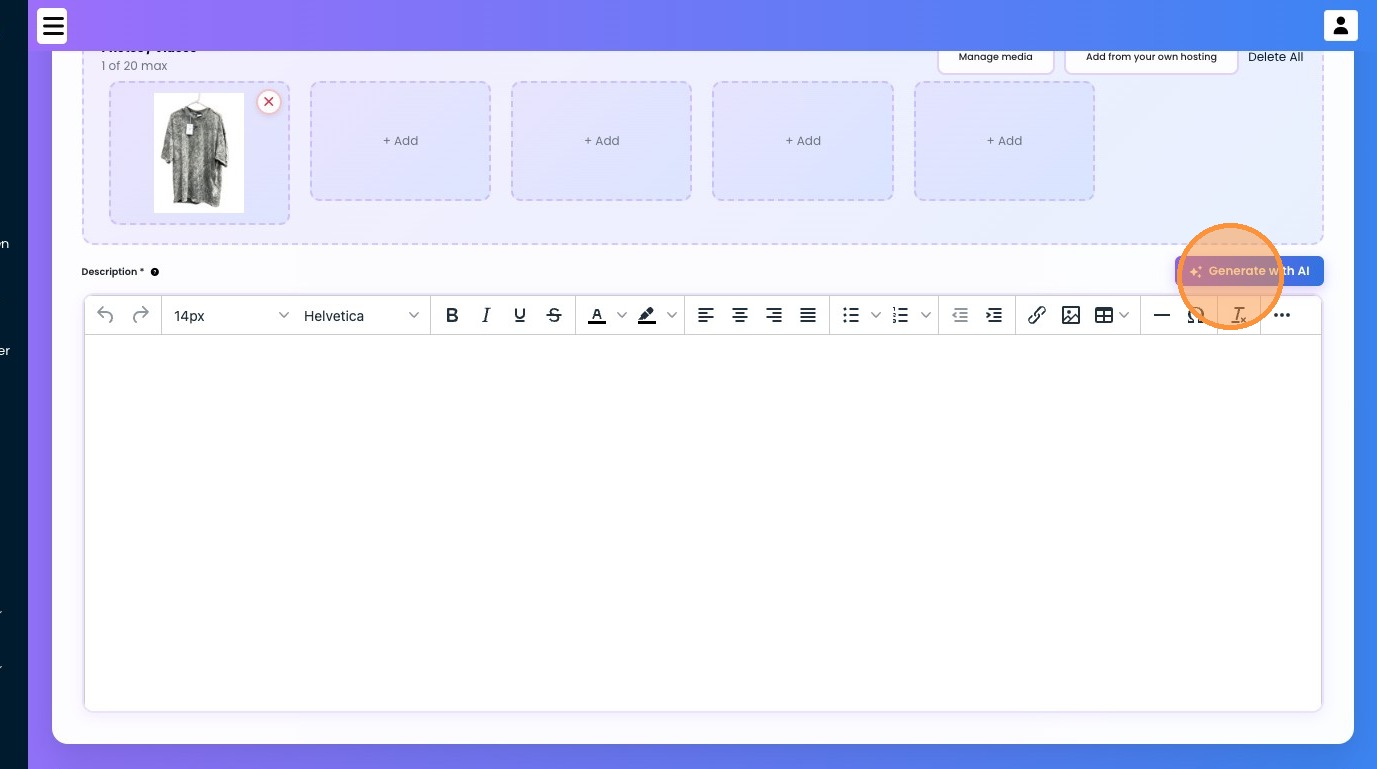
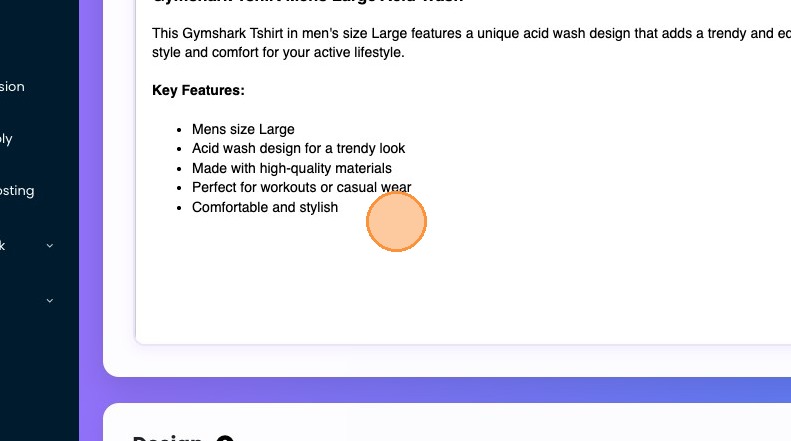
11. We have used the AI version below.
12. Choose your design by clicking the design button as shown below, this will show you all valid designs available on your account.
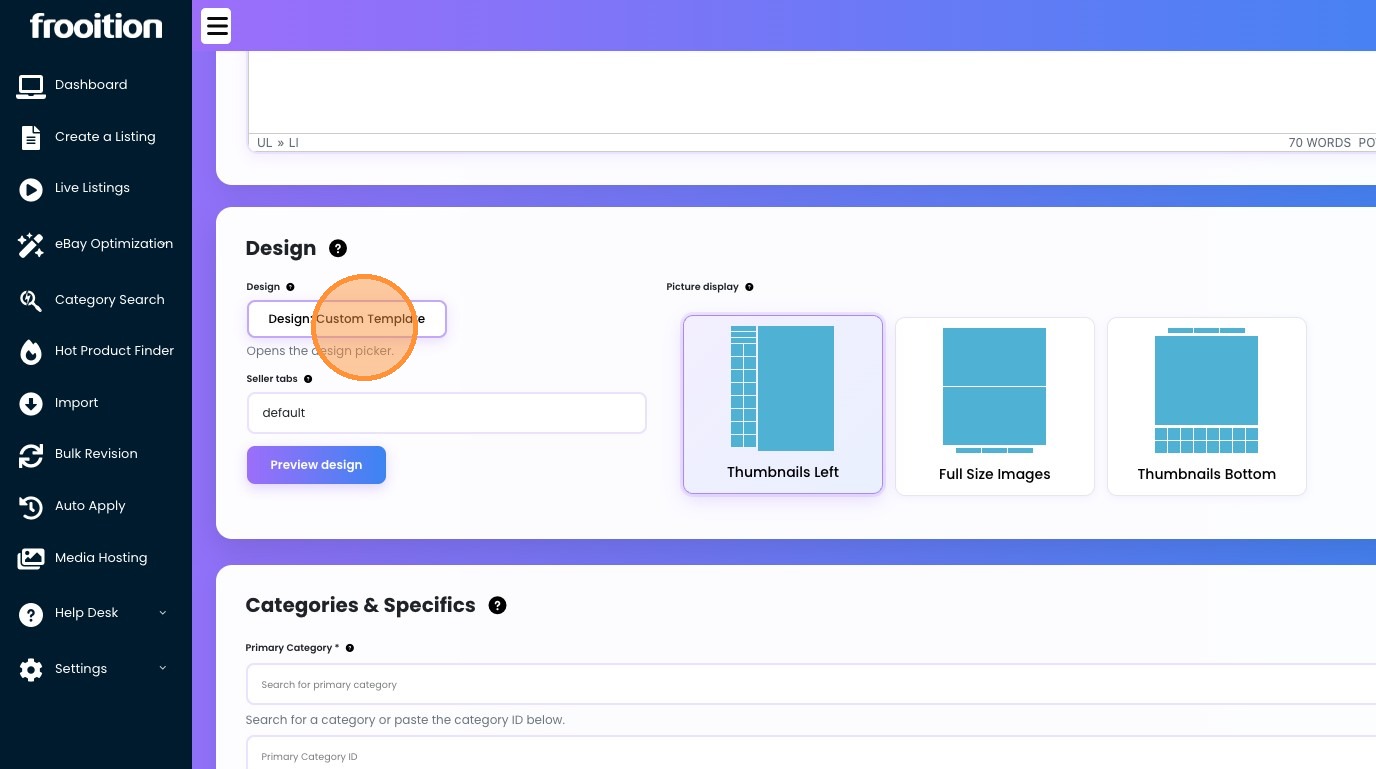
13. We are selected our summer sale design.
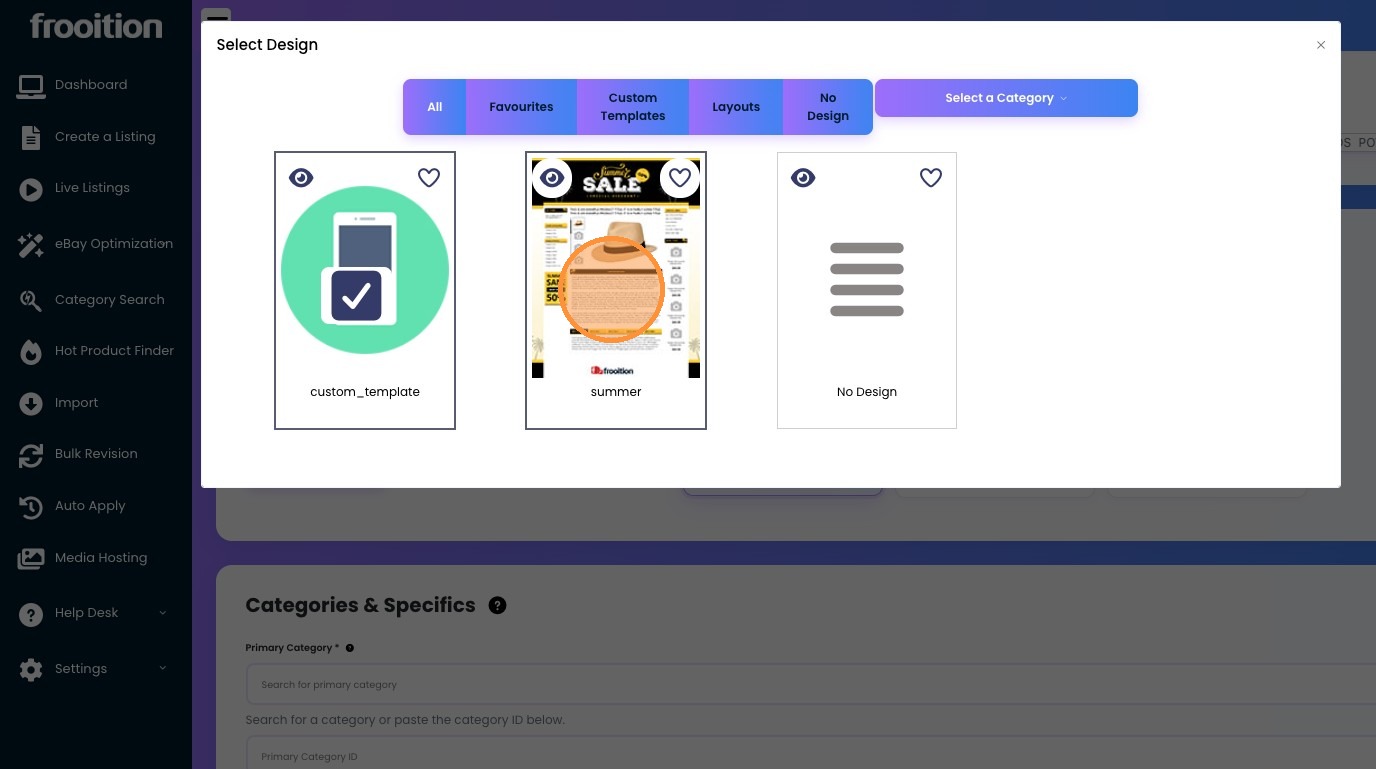
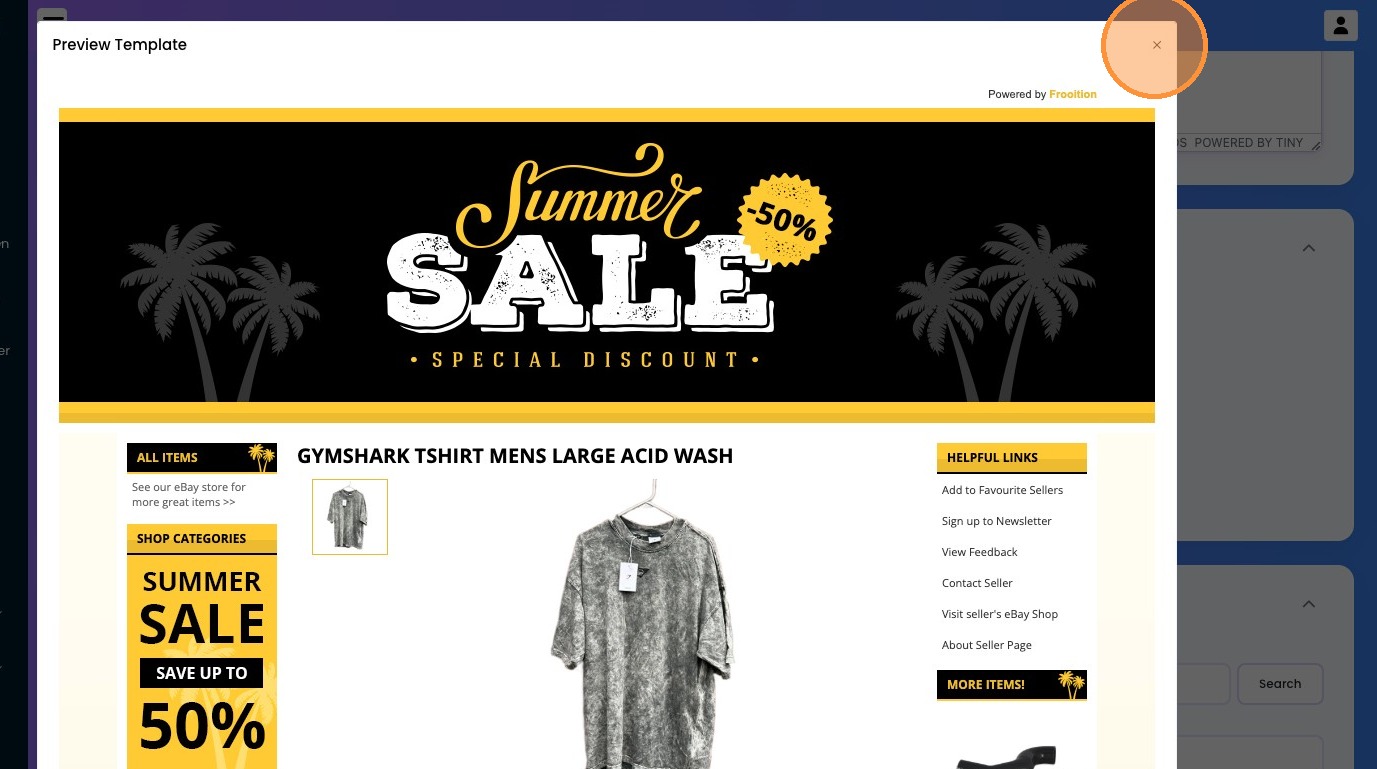
14. Click "Preview design" to see how it will look once live.
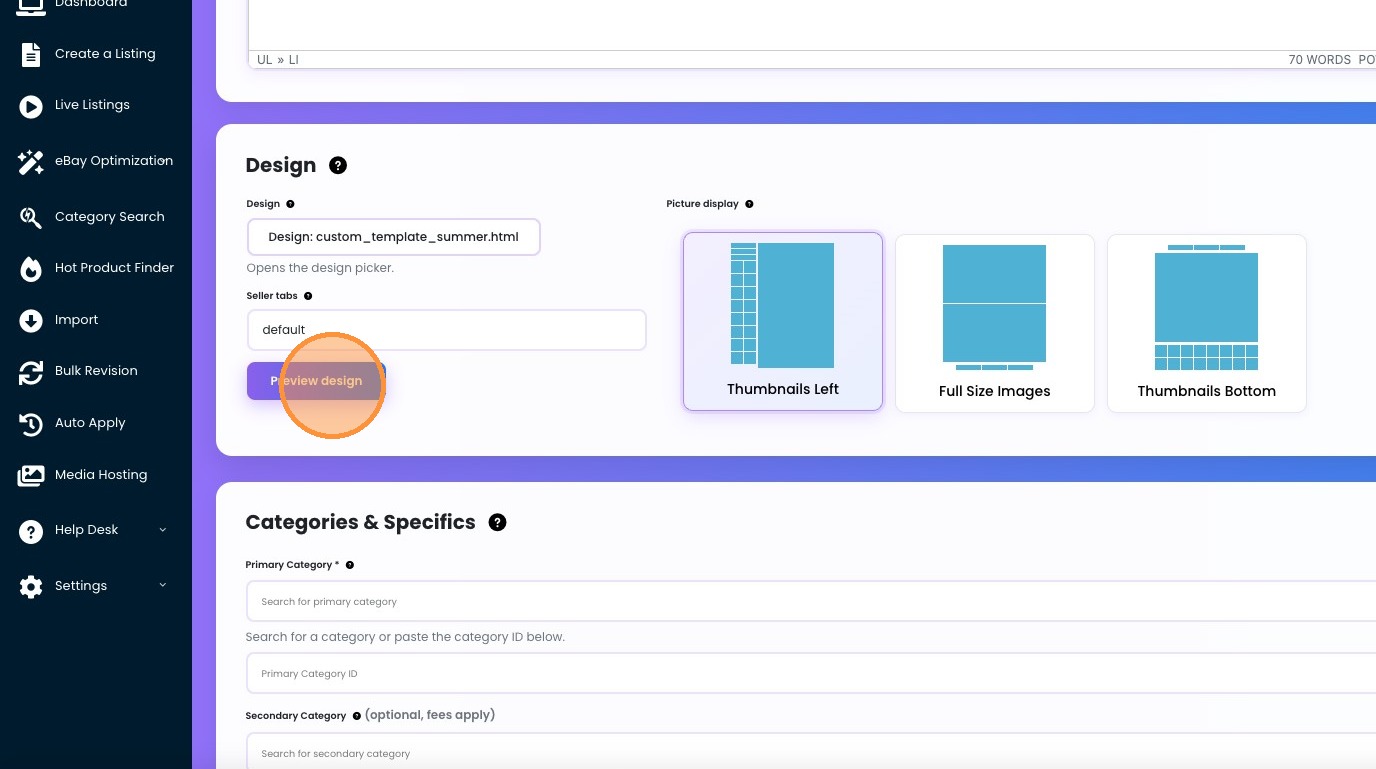
15. Here is the preview, just so you can make sure everything will look great in your description before launching
16. Click the "Search for primary category" field. and type in some keywords about your item to find the best eBay category.
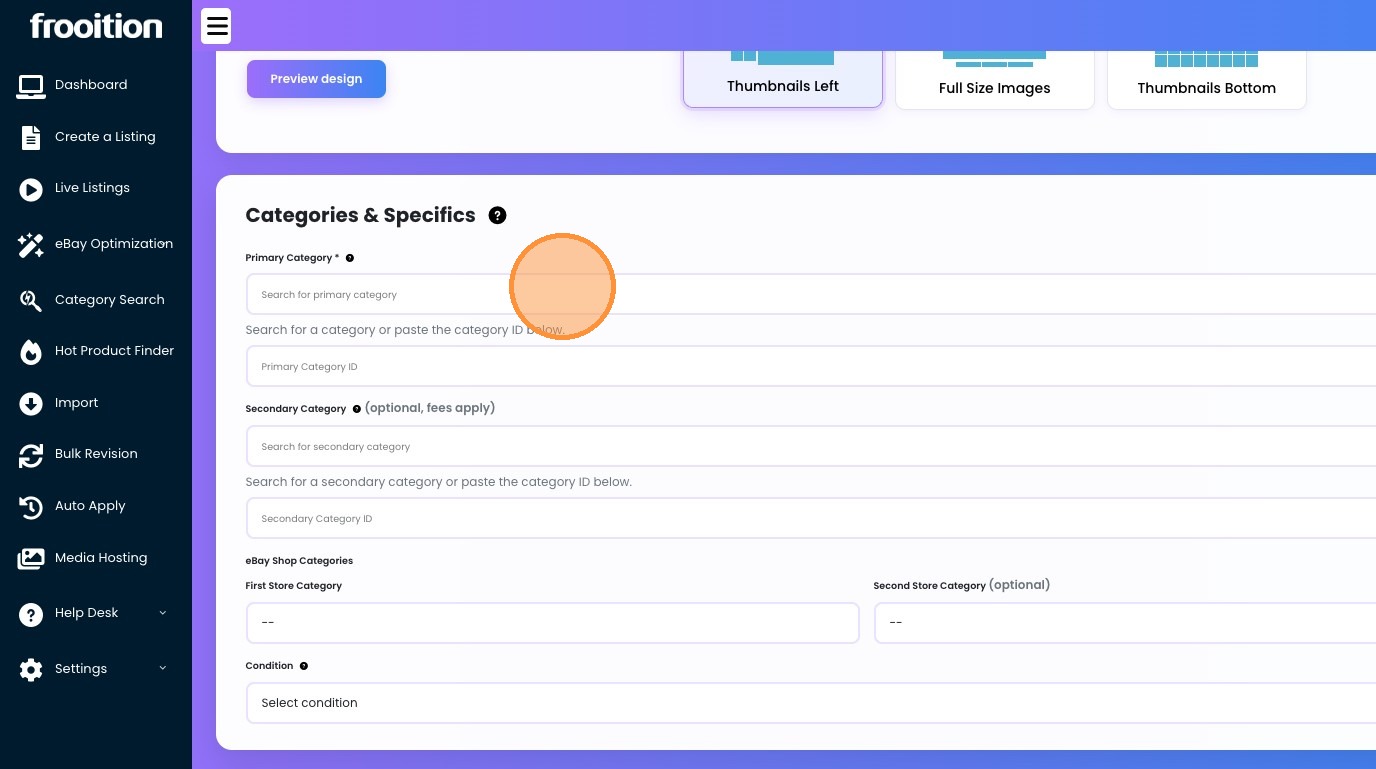
17. Click "Search"
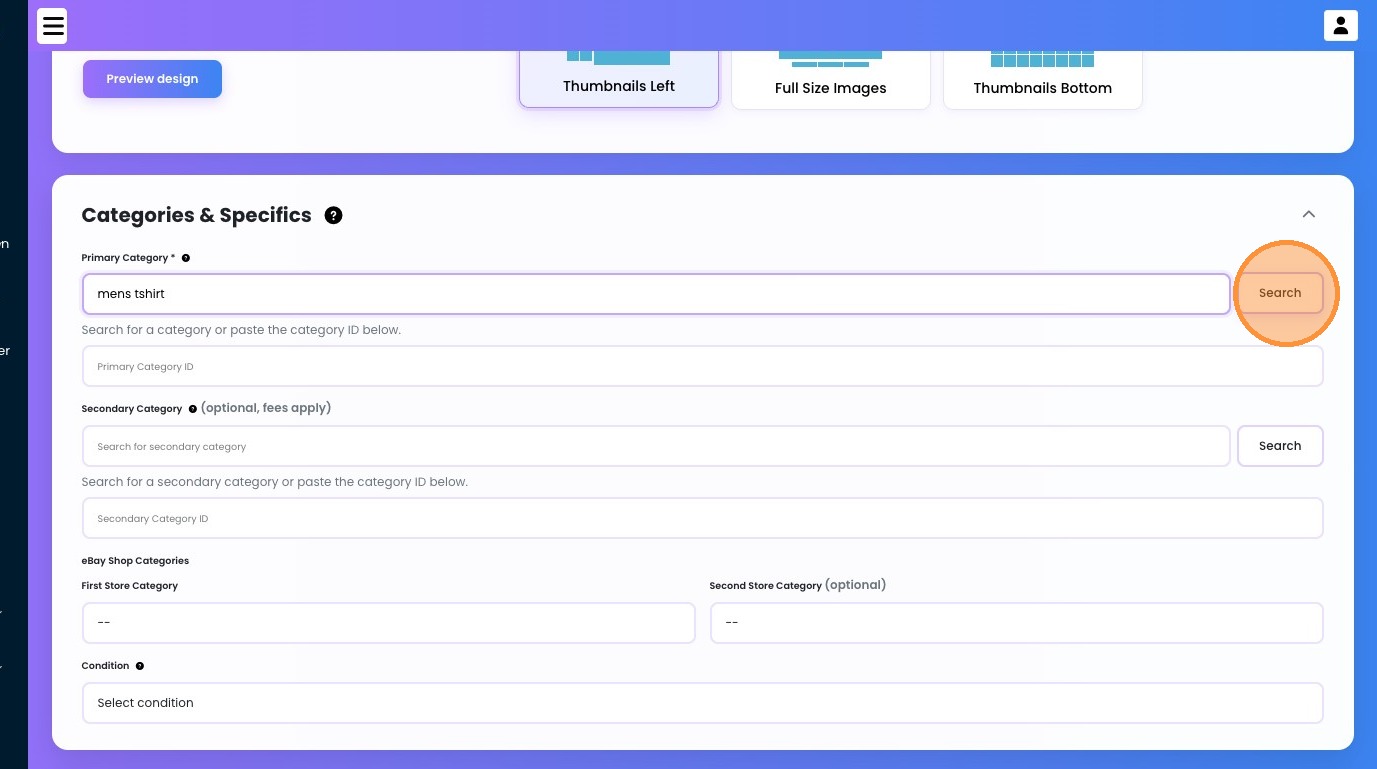
18. We are selected the "Shirts & Tops > Men's Clothing > Men > Clothes, Shoes & Accessories > T-Shirts (15687)" category, as it best matches our product.
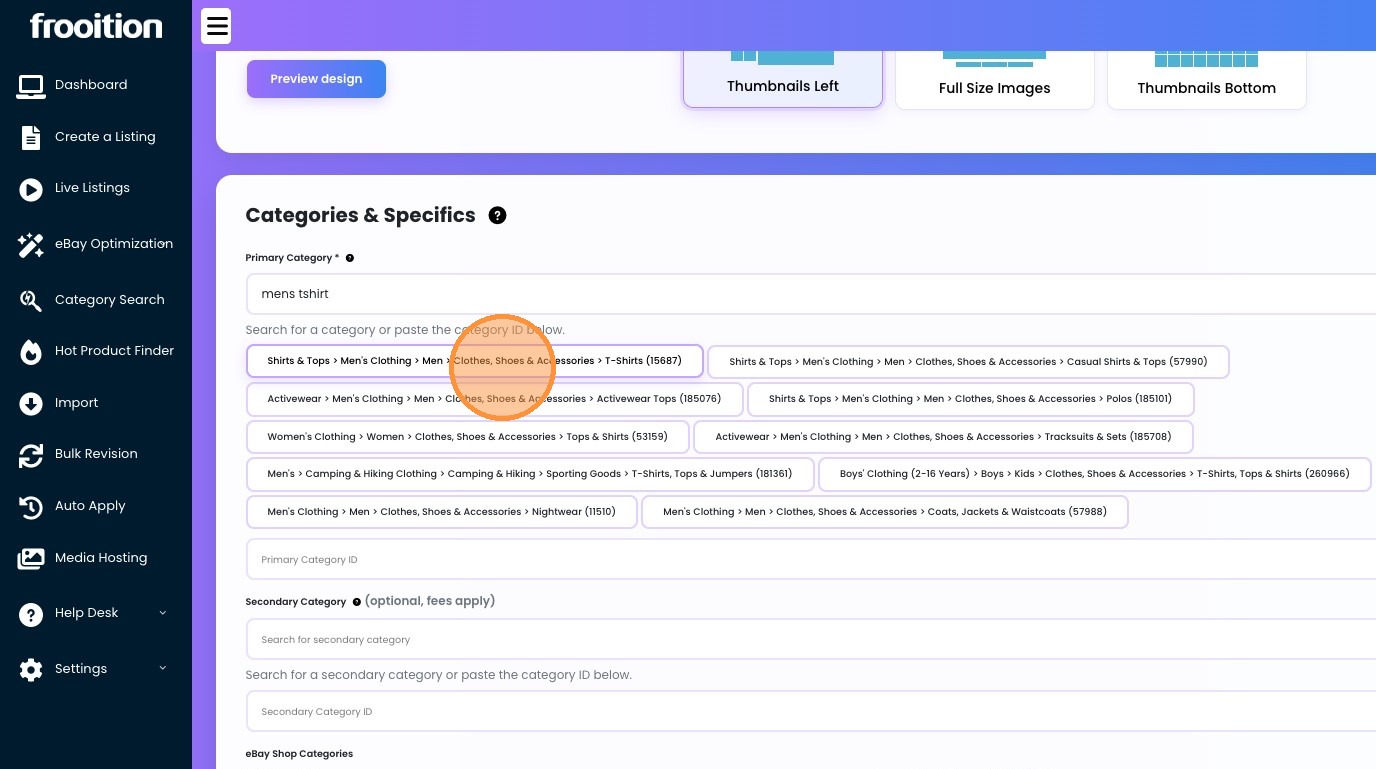
19. Make sure to select your products condition
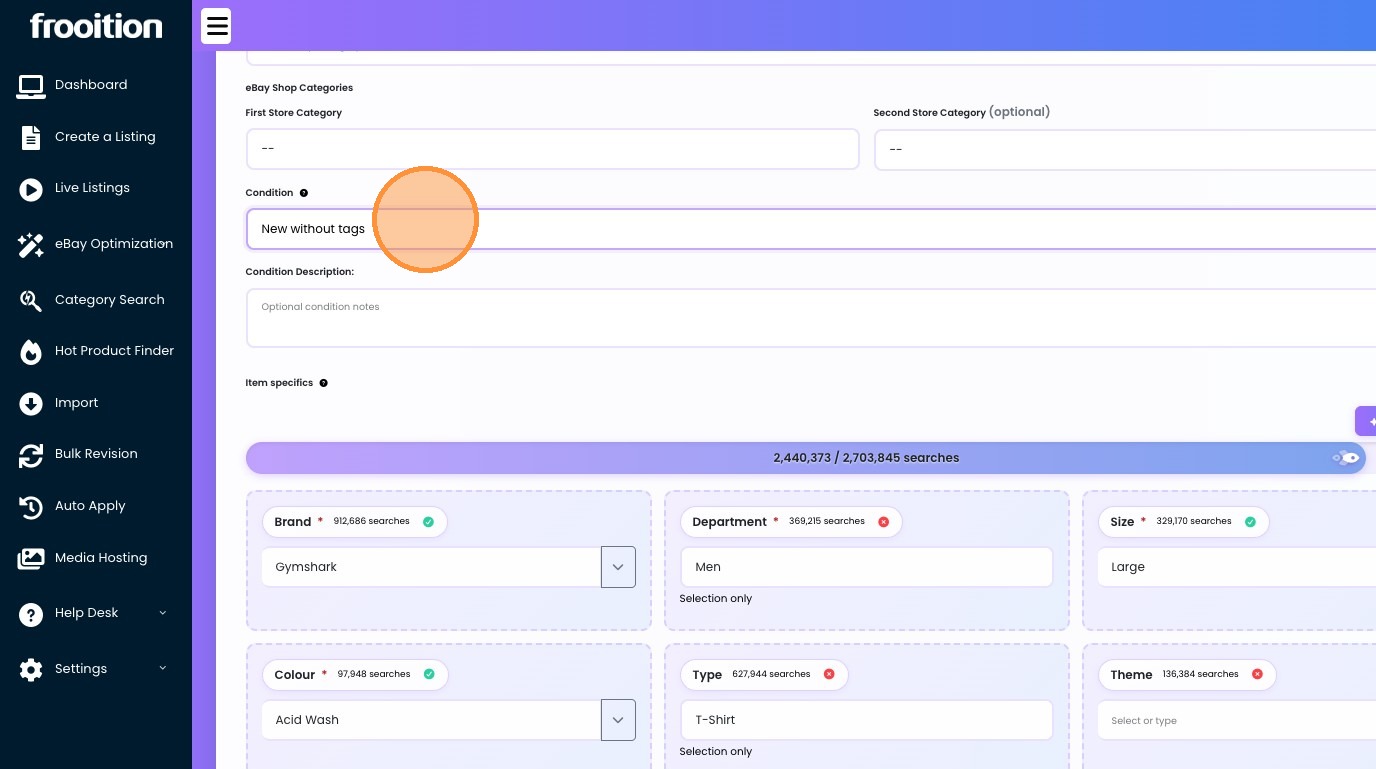
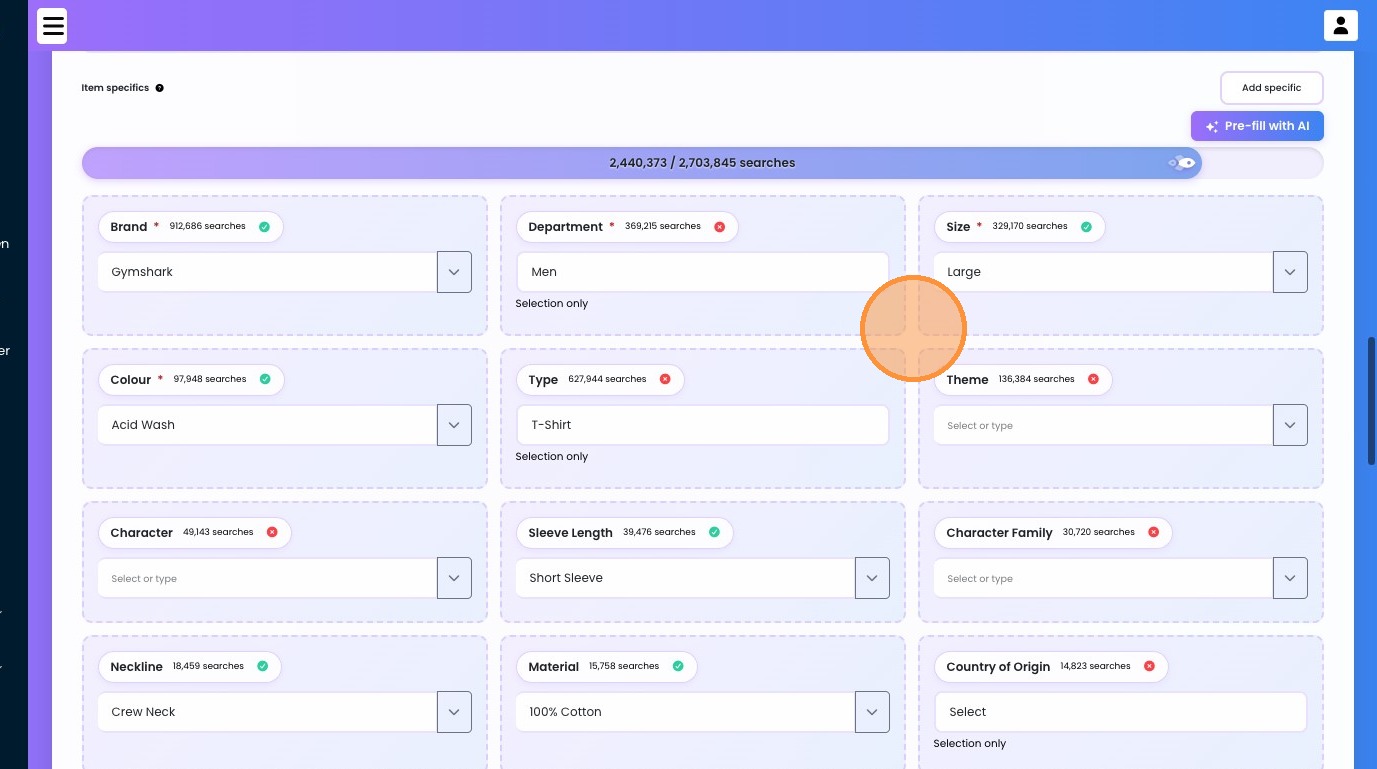
20. If you have enough credits, you can pre-fill the item specifics section to make listing even quicker, just click the pre-fill button shown below and it will load everything in for you. Feel free to make changes after if required.
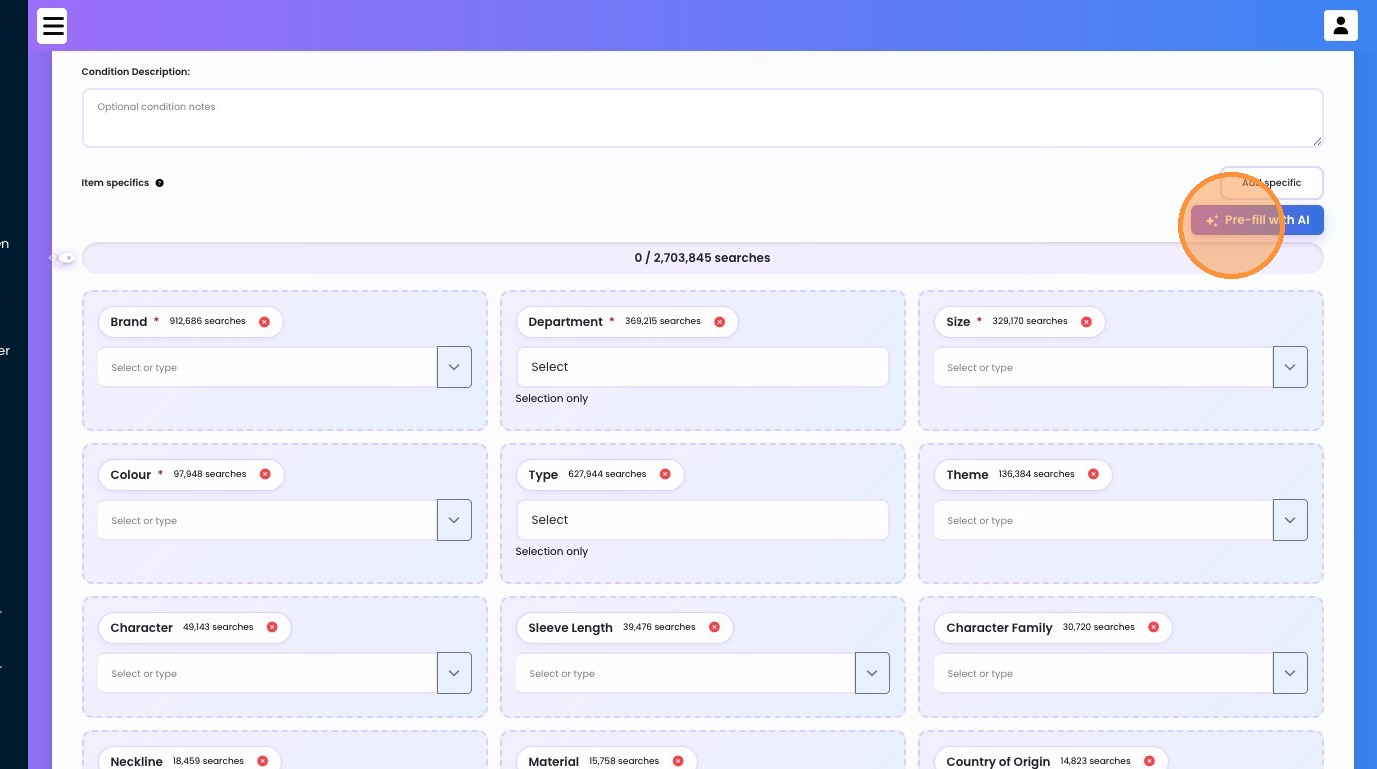
21. You will see we have now added on thousands of searches to our listings with a simple pre-fill.
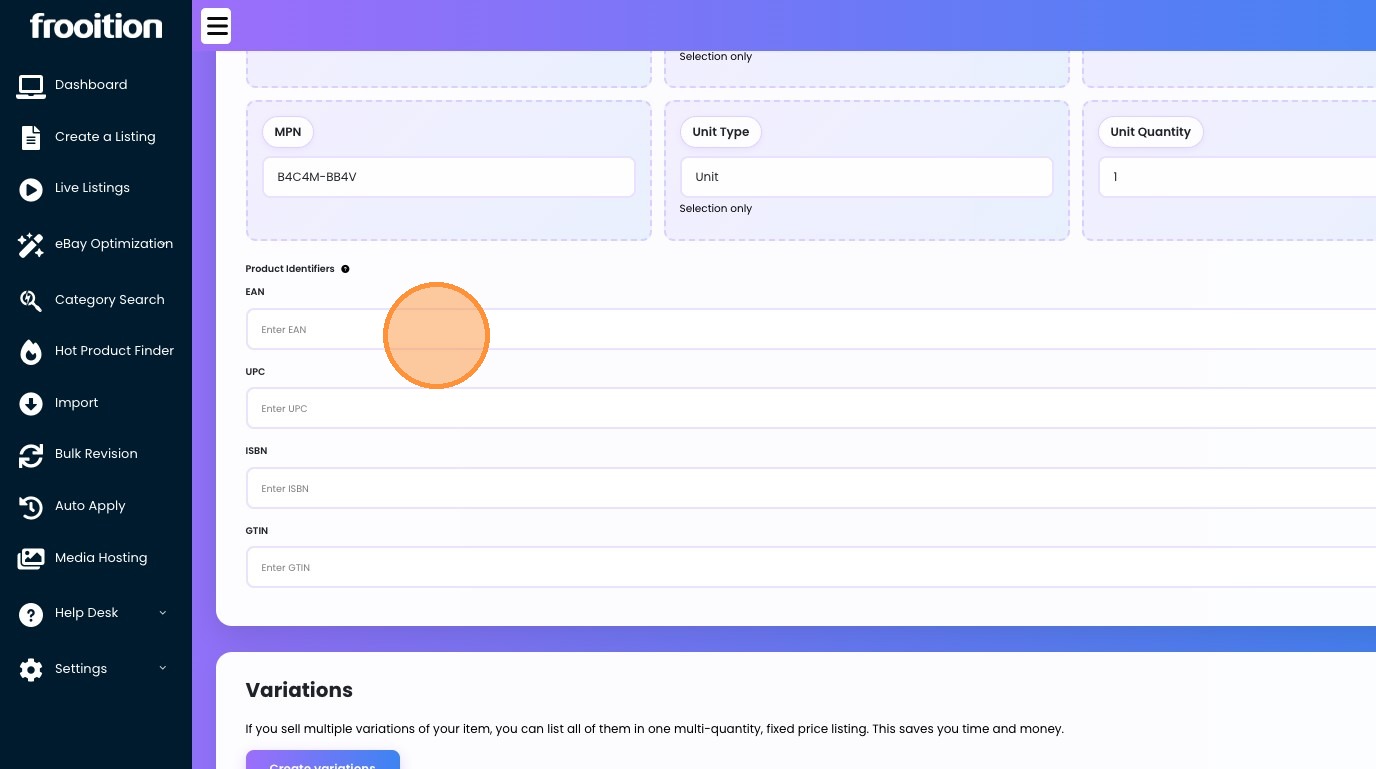
22. Enter any Product identifiers, such as barcodes etc.
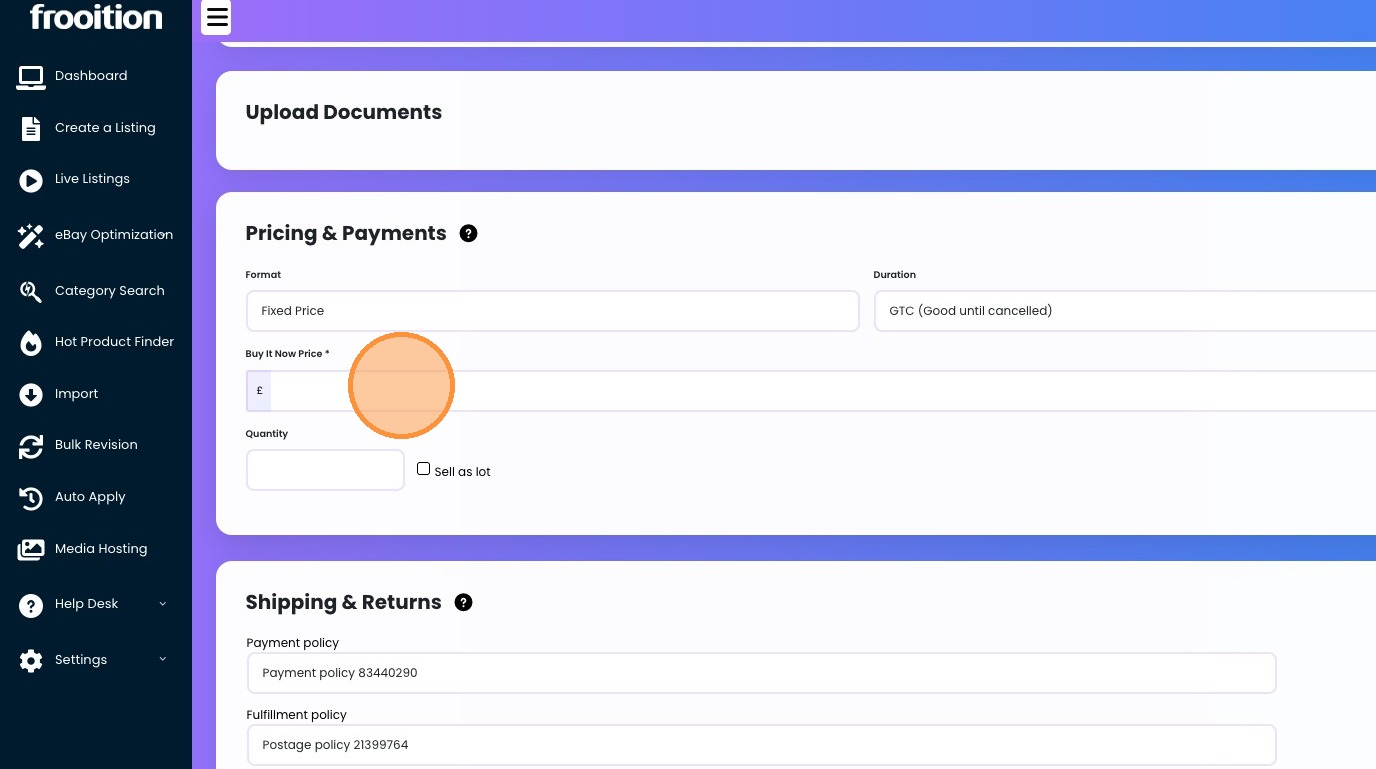
23. Add in your price and quantity.
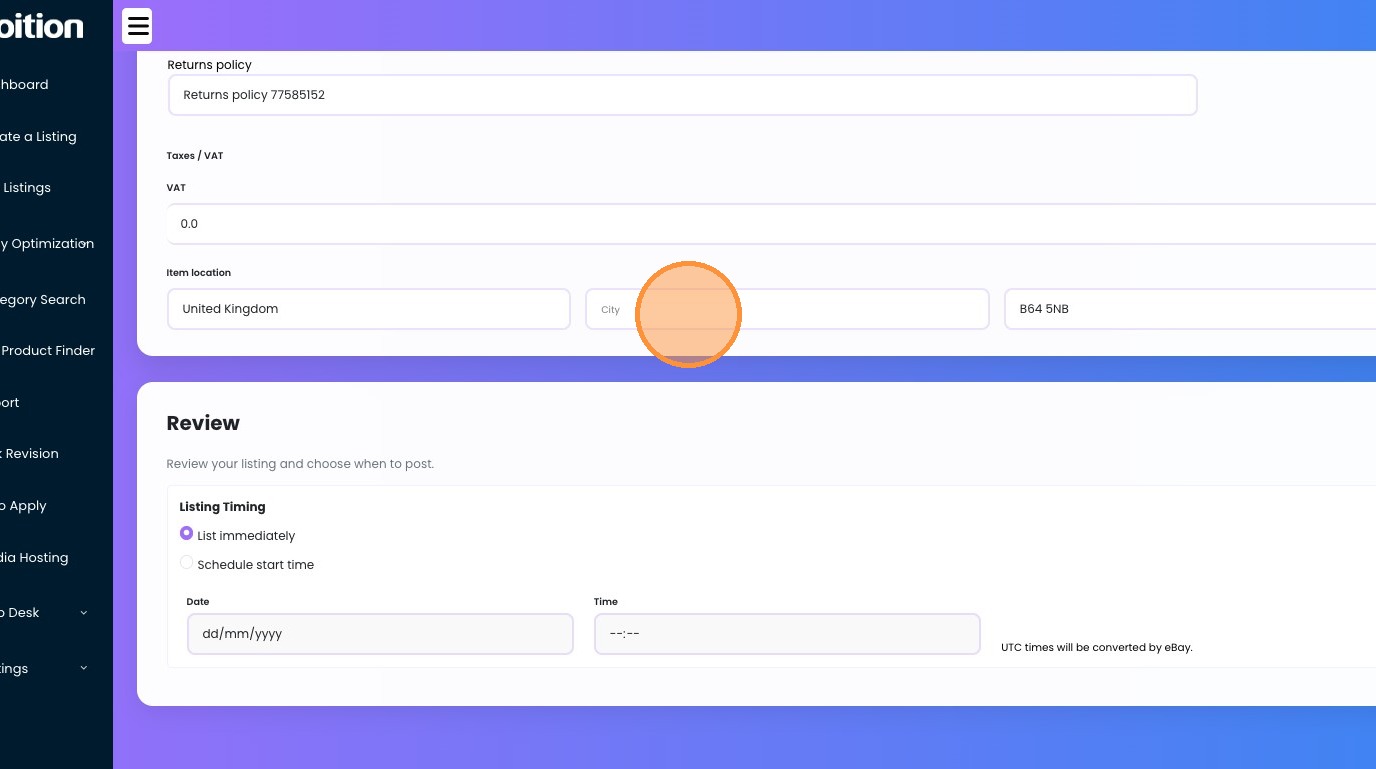
24. Add in your items location
25. You are now ready to Click "Review & List", this will check if your item can be listed to eBay first, checking for anything you may have missed or errors.
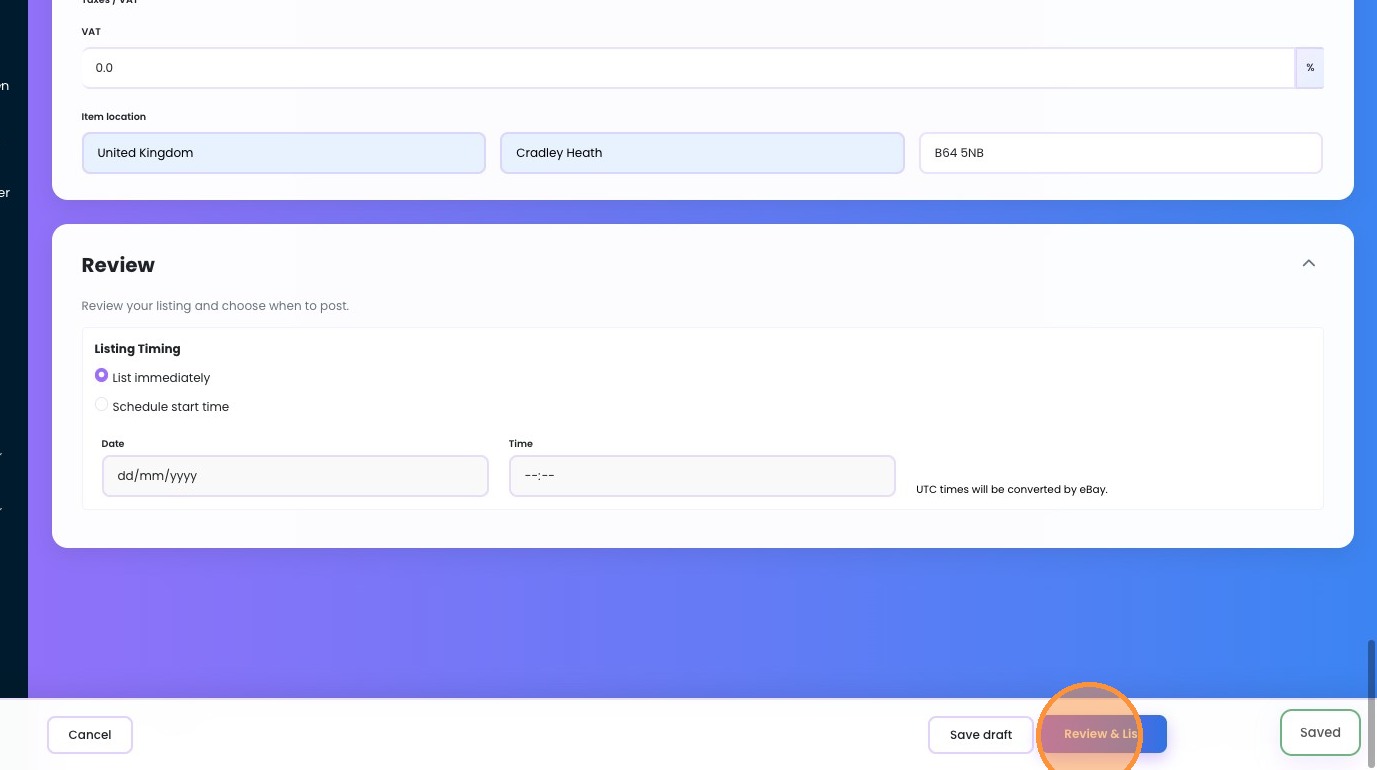
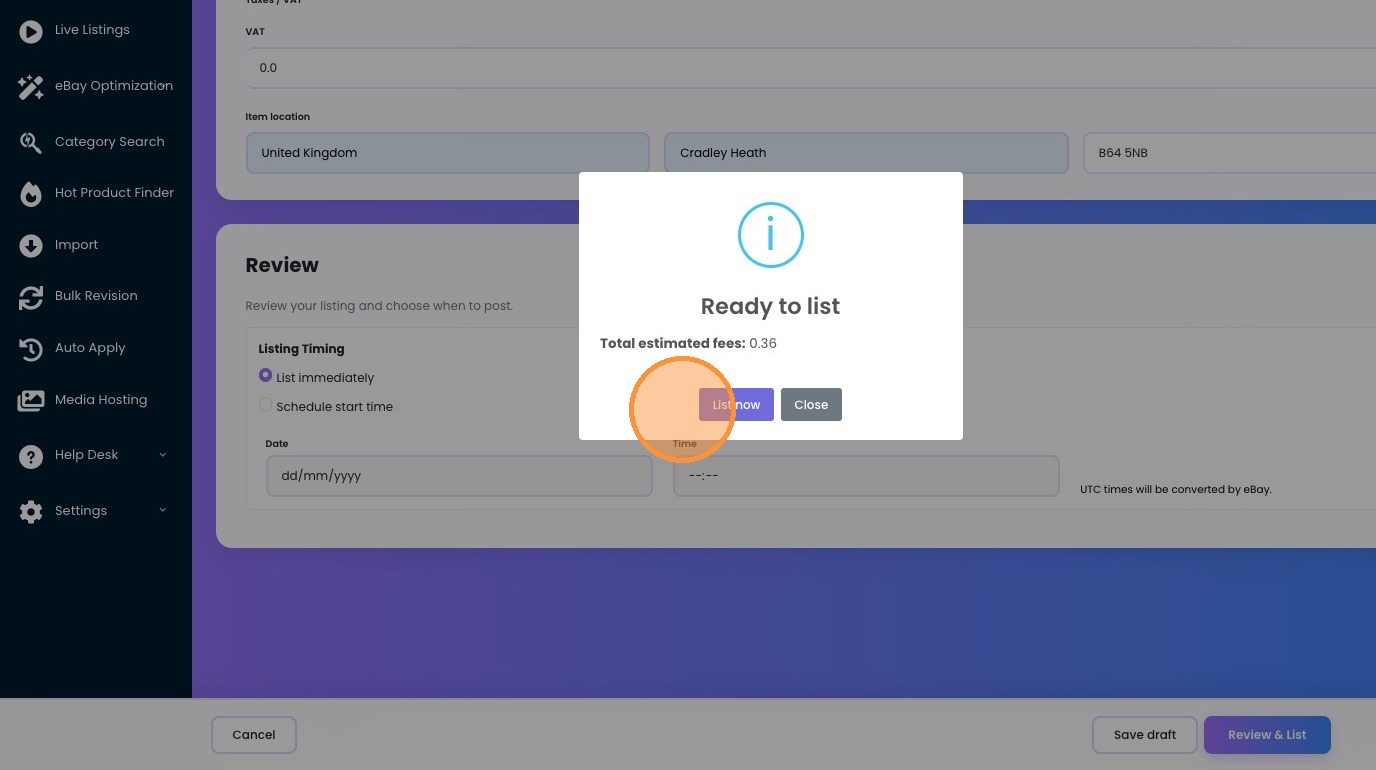
26. If all goes well with no errors, you will then see your estimated fees to list the item to eBay and have the option to list now, or close and keep it as a draft.
Share This How To Article
Thanks! We'll be in touch within one business day.

